Search
Configuration
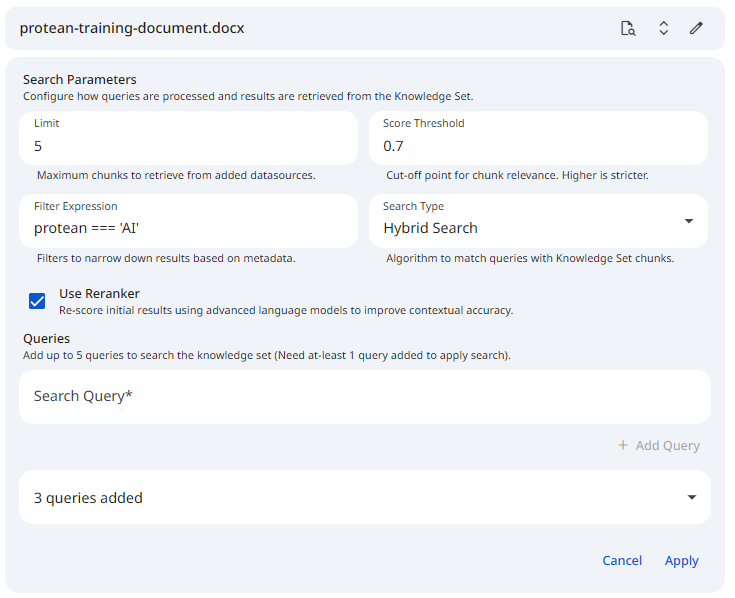
The Search Configuration interface allows you to query your registered datasets and individual datasources to retrieve the most contextually relevant document chunks. Testing these parameters within the Protean AI interface helps you optimize how the retrieval engine will behave during live inference.
You can perform searches using full-text keyword matching, vector similarity, or a powerful hybrid of both, while leveraging metadata filters and advanced reranking models.
See the screenshot below for an example of Search Configuration on a datasource.
 Snapshot of Protean AI Platform
Defining Your Queries
To ensure your RAG application can handle various user inputs, you can test multiple queries simultaneously.
- Query Limit: You must provide at least 1 query to execute a search, and you can add up to 5 distinct queries per search execution.
- Editing Requirements: You can freely add, remove, and edit these queries in the configuration panel to test how slight phrasing changes impact the retrieved chunks.
Search Parameters
Configure the following parameters to dictate how the retrieval algorithm identifies and ranks matching chunks in the vector database.
The same core parameters appear on two distinct surfaces, and their defaults differ:
| Parameter | Dataset test search | Agent knowledge retrieval |
|---|---|---|
| Search Type | Hybrid Search | Hybrid Search |
| Limit | 3 | 10 |
| Score Threshold | 0.0 | 0 |
| Use Reranker | On | Off |
| Search in Questions | Off | Off |
| Filter Expression | Available | Not available |
The dataset test search is the interactive panel used to evaluate retrieval against a dataset or a single datasource. The agent knowledge retrieval settings live under an agent's Knowledge Sets configuration (Search Properties tab) and control how that agent retrieves context at inference time. In both surfaces the Limit accepts values from 1 to 100.
Search Type
Determines the underlying retrieval algorithm used to find matching chunks.
| Option | Description |
|---|---|
| Full Text Search | Performs a traditional keyword-based search. Best for finding exact terminology, serial numbers, acronyms, or specific names. |
| Similarity Search | Performs a vector-based semantic search. It looks for chunks that match the underlying meaning of your query, even if the exact vocabulary differs. |
| Hybrid Search | Combines both Full-Text and Similarity searches, merging and scoring the results using Reciprocal Rank Fusion (RRF). This is generally the most robust and highly recommended approach. |
- Recommendation: Default to Hybrid Search for most RAG applications to leverage both exact-match precision and semantic understanding.
Use Reranker
A powerful toggle that enables advanced reranking of your search results using specialized language models. After the initial retrieval, the fetched results are re-evaluated and re-scored based on their deep semantic closeness to your exact query.
- When Enabled: Adds a secondary processing step that drastically improves the contextual accuracy and the final ordering of the matches. This is highly beneficial for complex queries but adds a slight processing latency.
- When Disabled: The system relies purely on the raw scores from the initial retrieval algorithm (Full-Text, Similarity, or Hybrid). This is faster and computationally cheaper, but may result in slightly less optimal chunk ordering.
- Default: On in the dataset test search, off in the agent knowledge retrieval settings.
- Recommendation: Keep this enabled for production environments where the quality of the AI's final answer is paramount.
Search in Questions
A toggle that extends the search to the questions generated for each chunk by the Create Chunk Questions capability during ingestion. When enabled, the query is also matched against those pre-generated questions, not only the chunk text. This control is available in both the dataset test search and the agent knowledge retrieval settings.
- When Enabled: The query is matched against each chunk's generated questions in addition to the chunk body, which can surface chunks that answer a question even when the chunk text does not share the query's vocabulary.
- When Disabled: Only the chunk text participates in matching.
- Default: Off on both surfaces.
- Prerequisite: This has an effect only on datasources that were ingested with Create Chunk Questions enabled. See the Create Chunk Questions section of the Chunking Strategies page.
Limit
The maximum number of dataset chunks to return for your query. Valid values range from 1 to 100. The dataset test search defaults to 3, while the agent knowledge retrieval defaults to 10.
- Impact of Larger Values: Retrieves an expansive amount of context. While this casts a wide net, it risks overwhelming the LLM's context window, increasing API generation costs, and potentially introducing irrelevant "noise" that confuses the AI.
- Impact of Smaller Values: Creates a highly focused retrieval set. However, it risks missing critical pieces of information if the answer spans multiple distinct chunks or if the top 1-2 results are slightly off-target.
- Recommendation: Keep this between 3 and 10, depending heavily on the token size of your chunks and the maximum context window of your chosen generative model.
Score Threshold
The absolute cutoff point for relevance. The system scores chunks from 0 to 1 based on how closely they match the query.
- Impact of Higher Thresholds (e.g., 0.8+): Imposes extremely strict filtering. It ensures only highly confident, direct matches are returned, but significantly increases the risk of returning zero results if the user's query is vaguely phrased.
- Impact of Lower Thresholds (e.g., 0.2): Imposes loose filtering. This guarantees more chunks are returned to the LLM, but inevitably includes loosely related or irrelevant data that could degrade the quality of the final generation.
- Recommendation: Start around 0.5 to 0.7 and adjust iteratively based on testing your specific data.
Filter Expression
An optional query language used to narrow down search results based on the custom Metadata you attached during the chunking phase.
Filter Expression is available only in the dataset test search. The agent knowledge retrieval settings (Search Properties tab) do not expose a filter expression field.
- Impact of Restrictive Filters: Creates a highly targeted search that guarantees the retrieved chunks belong to a specific subset of data. This is excellent for enforcing strict domain scoping (e.g., ensuring a user only queries 'HR' documents).
- Impact of Missing Filters: Searches indiscriminately across the entire dataset. While useful for general knowledge queries, it risks pulling in out-of-context data if the dataset contains highly diverse topics.
- Supported Operators:
AND,OR,(),==,!=,>=,<=,IN,NOT IN.
Reviewing Search Results
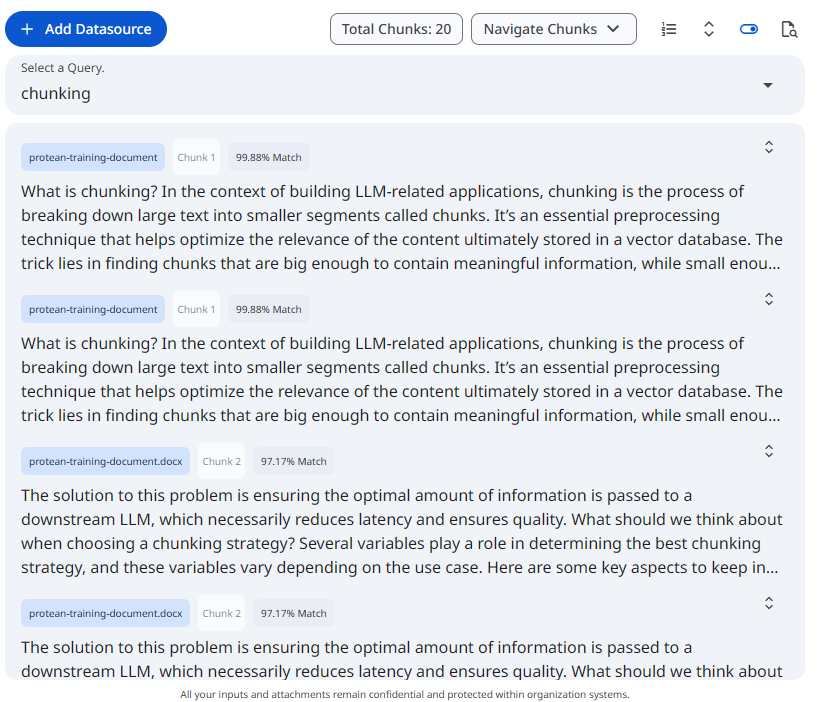
Once a search is applied, Protean AI retrieves the most relevant chunks across all targeted datasets and datasources. The results are structured to give you a clear, analytical view of your retrieval pipeline's performance.
Result Grouping and Differentiation
To help you track exactly where your context is coming from, the search results are visually differentiated:
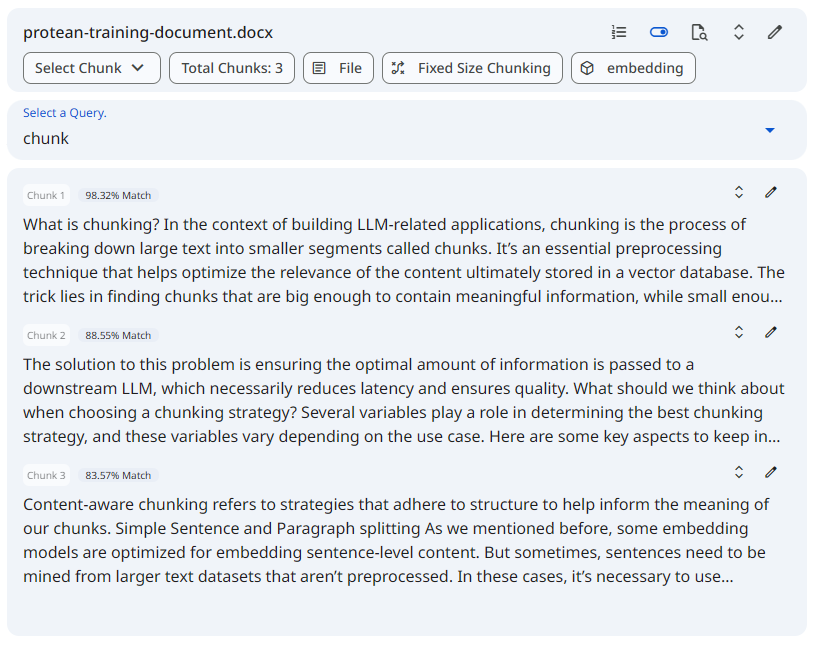
- Dataset & Datasource Tags: Each retrieved chunk explicitly displays the specific Dataset and Datasource it belongs to.
- Chunk Identifiers: Every result includes its original Chunk Number, allowing you to trace the text back to its exact location in the source document.
- Match Score: Each chunk displays its calculated relevance score (from
0to1), showing exactly how well it matched your query under the current search configuration.
Sorting Options
For easier viewing and analysis, you have the ability to sort the returned chunks based on your current testing goal:
- Sort by Score: Orders the chunks from highest relevance to lowest. This is the default and most useful view for evaluating the quality of your retrieval.
- Sort by Chunk Number: Orders the retrieved chunks sequentially as they appear in the original document. This is highly useful for seeing if consecutive parts of a document were retrieved together.
See the screenshot below for an example of Search Results on Knowledge set.
 Snapshot of Protean AI Platform
See the screenshot below for an example of Search Results on Datasource.
 Snapshot of Protean AI Platform
Contextual View Modes
Whether you are executing a search across an entire knowledge set or deeply investigating a single file, Protean AI provides dedicated view toggles. These toggles allow you to fluidly switch between your search results and your standard data views without losing your active search configuration or context.
Knowledge-Level Views
When applying a search configuration from the main knowledge dataset page, you can toggle between:
- Datasource List View (Default): Displays your standard, comprehensive inventory of all uploaded files and text inputs within the dataset.
- Search Results View: Overrides the list to display the specific document chunks from across all active datasources that successfully matched your applied queries.
Datasource-Level Views
When applying a search configuration from within a single datasource's specific profile, the toggles adapt to that narrower scope:
- Default Document View: Displays the entire, sequentially ordered list of chunks generated for that specific file. This is your standard view for reviewing chunk boundaries, metadata, and the overall processing quality of the document.
- Search Results View: Filters the interface to show only the chunks from this specific datasource that successfully matched your search criteria.
Switching back and forth between these views is a highly effective debugging technique. It allows you to quickly compare the specific context the search algorithm caught (by looking at the Search Results View) against the broader context it missed or ignored (by looking at your Default Views).