Skills
A Skill is a reusable building block for your AI agents that combines a set of tools with an instructional prompt. The tools give the agent the ability to act (calling MCP servers or built in default tools), and the prompt tells the agent how and when to use them. Packaging the two together means a capability can be defined once and then attached to many agents, keeping behaviour consistent across your fleet.
Skills define the specific capabilities of your AI agents by combining technical tools with instructional prompts. They act as a bridge, allowing agents to interact with your data and services securely and consistently.
This page covers the standalone Skill builder, where Skills are created and maintained on their own. For attaching an existing Skill to an agent and configuring its per agent behaviour, see Agent Skills.
Skills are reached from the left sidebar under the Agent Builder section. Selecting Skills opens the Skills list at the route /skills.
Skills List
The Skills list shows every Skill you can access. Use the Search Skills field to filter the list by name, and Add Skill to open the inline creation form. Each Skill appears as a card showing its name and description, along with tags for the number of MCP servers and the number of tools it bundles. Selecting a card opens that Skill's detail page.
Creating a Skill
Click Add Skill on the list page to reveal the creation form inline (it expands beneath the toolbar rather than opening a dialog or a separate page). The form is organised into five tabs: Basic Info, Implementation, MCP Servers, Default Tools, and Resources. Cancel dismisses the form, and Save stays disabled until the required fields are valid. After a Skill is created, you are taken to its detail page.
Basic Info
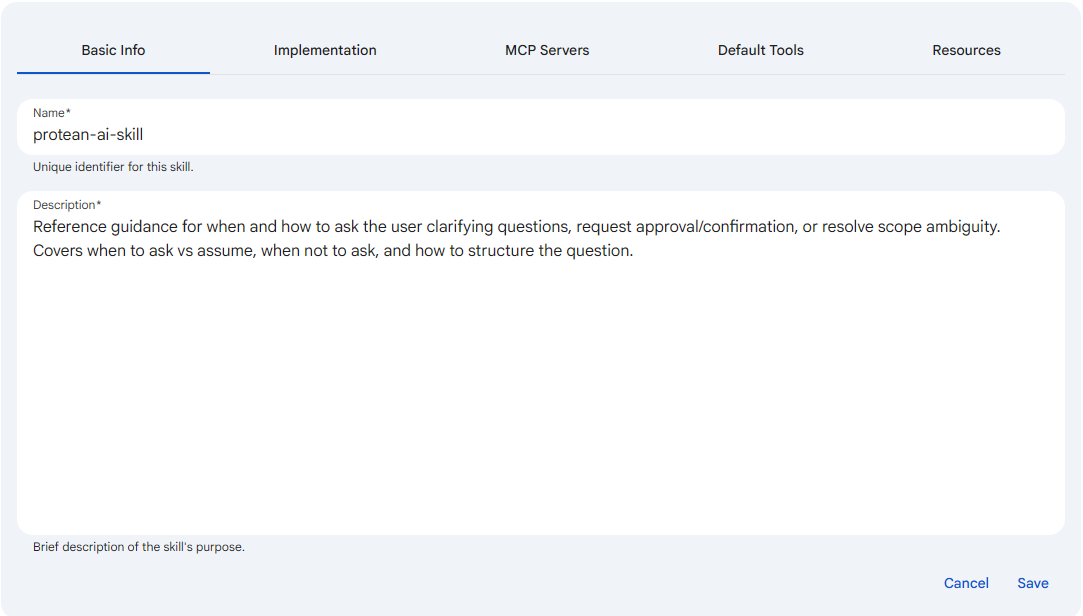
The Basic Info tab captures the Skill's identity. It holds the two fields that give the Skill a name and explain what it is for, and it is the only tab whose fields must be valid before the Skill can be saved.
 Snapshot of Protean AI Platform
The Name is the unique identifier for the Skill, and it is what you and the platform use to refer to the Skill everywhere it appears. You set it by typing into the field, where spaces are automatically converted to hyphens and the input is restricted to allowed characters so the value stays a clean identifier. It matters because the Name is how a Skill is recognised and looked up, and because it is locked after creation, so getting it right up front avoids having to recreate the Skill later.
The Name is locked after creation. When you edit an existing Skill, the Name field is disabled and cannot be changed.
The Description is a required free text field that explains the Skill's purpose in plain language. You set it by writing a short summary of what the Skill does and when an agent should use it. It matters because the Description is shown on the Skill card and on the detail view, so it is the first thing teammates read when deciding whether a Skill fits their agent, which makes a brief and purposeful description valuable.
Implementation
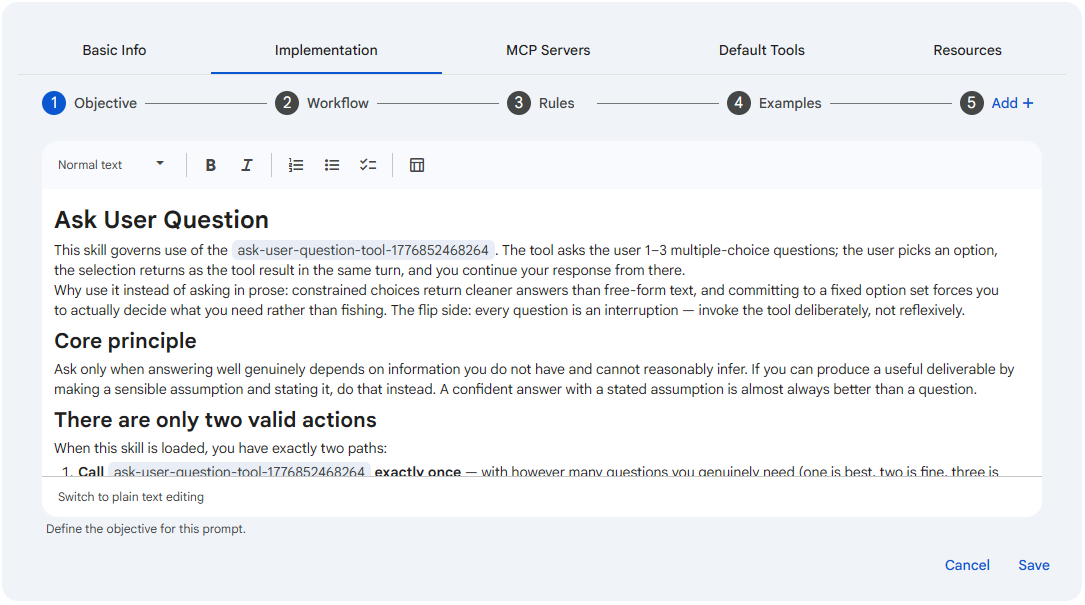
The Implementation tab holds the instructional prompt, which is the guidance an agent follows whenever it uses this Skill. The prompt is what turns a bundle of tools into a coherent capability: it tells the agent how and when to reach for those tools and what good behaviour looks like. The prompt is required, and it is composed through a stepper that breaks the instructions into named sections so you build it one focused piece at a time rather than as one long block of text.
 Snapshot of Protean AI Platform
The stepper provides four sections by default. Objective states what the Skill is meant to accomplish, Workflow lays out the sequence of steps the agent should follow, Rules captures the constraints and guardrails the agent must respect, and Examples gives sample inputs and outputs that illustrate the desired behaviour. You fill in each section in turn, and the stepper composes them into the single instructional prompt that is stored on the Skill. Beyond the defaults, you can Add your own custom sections to structure the prompt however the Skill requires. This sectioned approach matters because it keeps the guidance organised and complete, which leads agents to use the Skill's tools more predictably and reduces ambiguous or unsafe behaviour.
MCP Servers
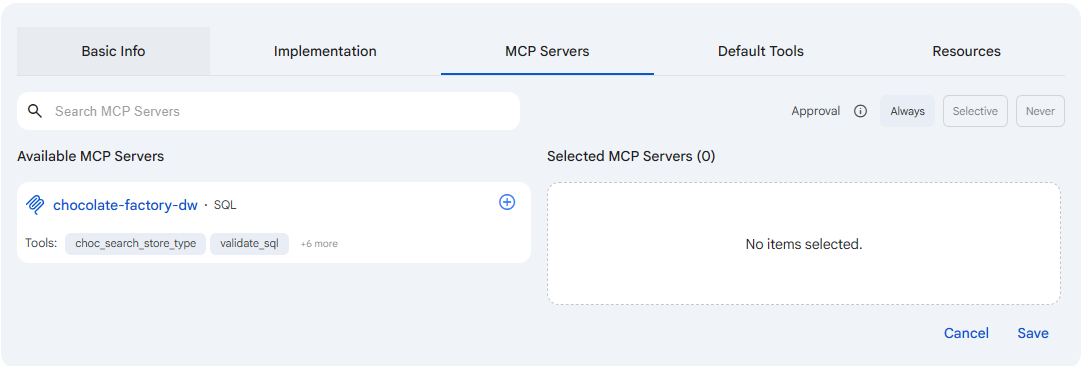
The MCP Servers tab is where you attach tool providers to the Skill. An MCP server exposes a set of tools, and selecting it here gives the Skill the ability to call those tools during a conversation. You pick one or more MCP servers and choose which of their tools the Skill may use, so a Skill exposes only the tools it actually needs. For background on MCP servers themselves, see the MCP Servers documentation.
 Snapshot of Protean AI Platform
Alongside the server and tool selection, this tab sets the tool call Approval scope, which controls whether a tool call pauses for human approval before it runs. You choose one of three scopes, and the choice matters because it is the main safety control over what the Skill's tools can do without oversight.
| Scope | Behaviour |
|---|---|
| Always | Every tool call requires approval before it runs. |
| Selective | Approval is configured per tool: each tool is set to Always or Never. |
| Never | Tool calls run without approval. |
Always asks for approval on every tool call, which is the most cautious setting and suits tools that change data or have side effects. Never runs every tool call without asking, which suits read only or low risk tools where prompting would only slow the agent down. Selective is the per tool middle ground: a selector lets you mark each individual tool as requiring approval (Always) or not (Never), so you can gate the sensitive tools while letting safe ones run freely. Choosing the right scope matters because it balances how autonomous the agent is against how much human review each action gets.
Default Tools
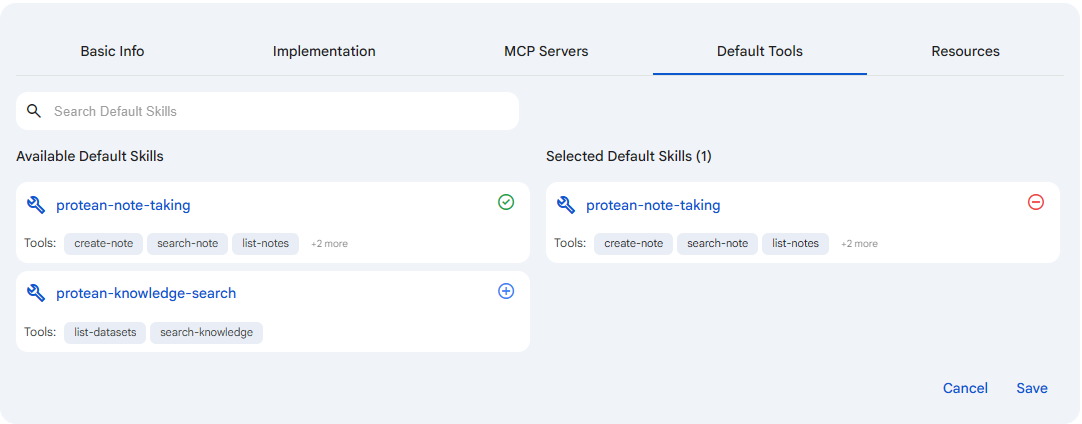
The Default Tools tab lets you attach the platform provided default skills that Protean ships, such as protean-note-taking and protean-knowledge-search, and select which of their tools this Skill exposes. These default skills package commonly needed capabilities so you do not have to build them yourself. You add one by searching the Available Default Skills list and moving an entry into Selected Default Skills, after which selecting its tool chips grants those specific tools to the Skill.
 Snapshot of Protean AI Platform
Once a default skill is added, you toggle the individual tools it contributes so the Skill exposes only the ones you want. A default skill that is already added cannot be added again; modify its tools in the selected list or remove it to start over. This matters because it lets you reuse Protean's built in capabilities through a Skill without wiring up an MCP server, while still keeping precise control over exactly which tools become available.
Resources
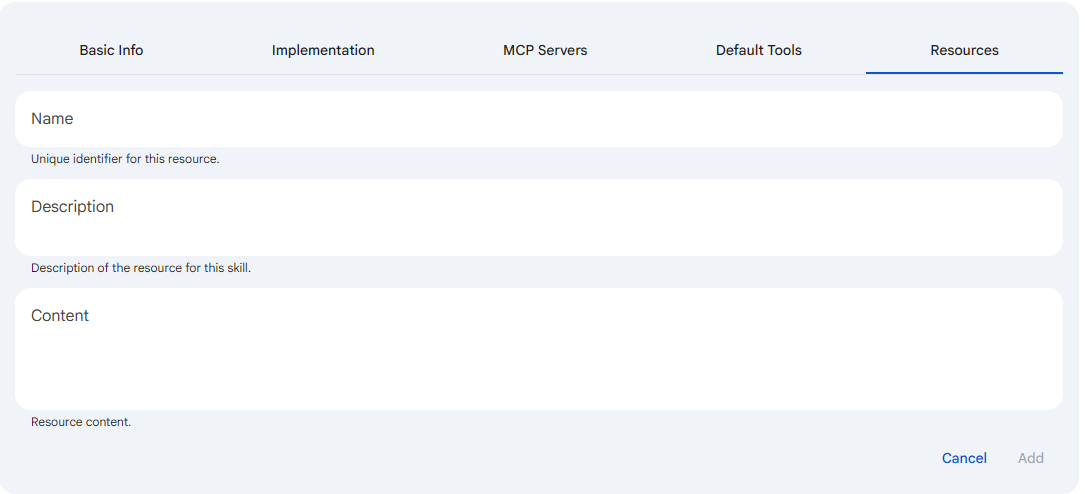
The Resources tab lets you attach named reference blocks to the Skill. A resource is a small, named piece of content that the Skill's prompt and tools can refer to, for example a glossary, a policy snippet, or a template the agent should reuse. Resources matter because they let you keep reusable reference material with the Skill itself rather than repeating it inside the prompt, which keeps the instructions clean and makes the content easier to maintain. The screenshot below shows the empty Resources form for reference.
 Snapshot of Protean AI Platform
Use Add Resource to open the resource form, which has three fields. Name is a unique identifier for the resource, Description is a short explanation of what the resource provides, and Content is the resource body itself. You fill these in and confirm to attach the resource, and added resources then appear as cards. Selecting a card reopens it for editing, each card has a remove action, and switching tabs while the resource form is open closes it.
A resource is treated as complete only when Name, Description, and Content are all provided. If any of them are filled in, the others become required, and the form reports which fields are still missing.
Skill Detail
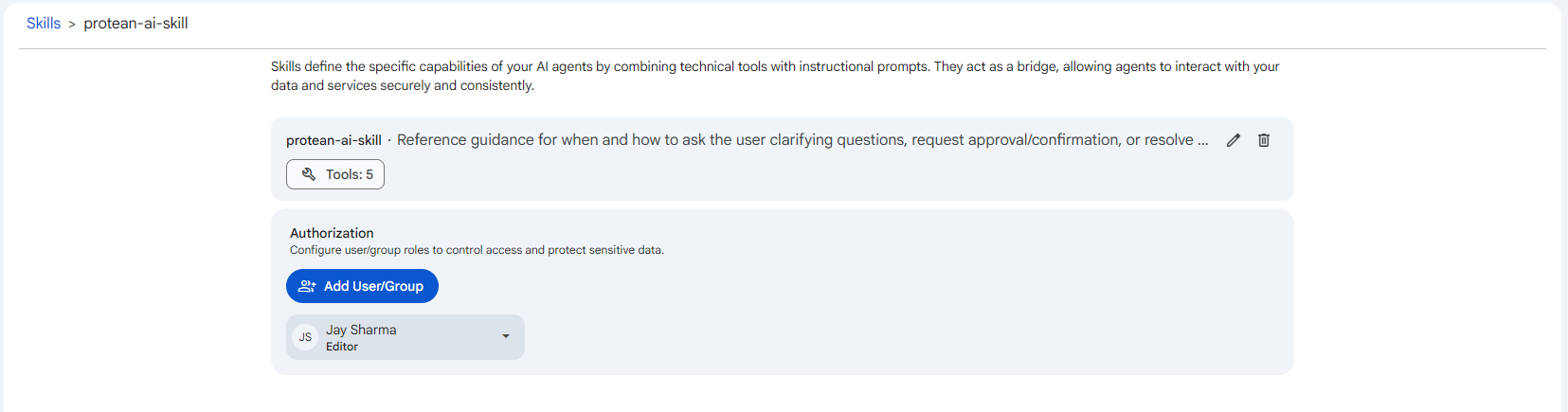
After a Skill is saved you land on its detail page, which is where you review the Skill and manage who can use it. The header is the Skill card itself, showing the name and description along with a Tools count tag that totals the tools the Skill exposes (and an MCP Servers count when servers are attached). The count is computed from the Skill's configuration, so it gives an at a glance sense of how capable the Skill is without opening the form. This matters because it lets you confirm the Skill is wired up the way you intended and provides the entry point to edit it or adjust its access.
 Snapshot of Protean AI Platform
Below the header is an Authorization section where owners control who can reach the Skill. You add a user or a group and assign them a role, choosing Editor for people who should be able to change the Skill or Viewer for people who should only be able to see and use it. You manage access here because authorization travels with the Skill itself, and getting it right matters since the same Skill can be attached to many agents, so the roles you grant decide who can change a definition that other people's agents depend on. The edit and authorization controls are shown only when your permissions allow them, and default system Skills expose a View action instead of edit so they stay read only.
Default System Skills
Protean AI ships with three platform provided default Skills:
protean-ask-user-questionprovides guidance for asking the user a clarifying question, requesting approval, or resolving ambiguity.protean-knowledge-searchretrieves factual information from knowledge datasets.protean-note-takinglets the agent persist, retrieve, update, and remove the user's notes for an agent.
These Skills are recognised by name and are treated as view only. On a default Skill's detail page, the card action is a View (eye) icon rather than an Edit (pencil) icon, the form opens in read only mode, and no Delete action is offered. You can inspect how a default Skill is configured, but you cannot modify or remove it.
Use the default Skills as references when designing your own. Opening one in View mode shows how its prompt, tools, and resources are structured.
How Skills Relate to Agents
A Skill on its own is a definition. It becomes active only when it is attached to an agent. On the agent side, you add a Skill by moving it from the Available Skills list into the Selected Skills list, after which the Skill's tools and instructional prompt become part of that agent's behaviour. The same Skill can be attached to multiple agents, which is what makes Skills reusable.
For the agent facing workflow, including per skill configuration once a Skill is attached, see Agent Skills.
Access Control
Like other resources in Protean AI, each Skill carries its own authorization. On a Skill's detail page you can grant access to specific users or groups and assign them owner (editor) or viewer roles. The actions available to you on a Skill depend on your permissions:
- Editing a Skill requires the UPDATE_SKILL permission.
- Deleting a Skill requires the DELETE_SKILL permission.
- Managing who can access a Skill requires both UPDATE_SKILL and UPDATE_SKILL_AUTHORIZATION permissions.
Default system Skills are exempt from editing and deletion regardless of permissions, since they are platform provided and view only.
Workflow
- Open Skills from the Agent Builder section of the left sidebar.
- Click Add Skill to reveal the inline creation form.
- On Basic Info, provide a unique Name and a Description.
- On Implementation, write the instructional prompt using the objective, workflow, rules, and examples sections (and any sections you add).
- On MCP Servers, attach tool providers, choose their tools, and set the tool call Approval scope.
- Optionally add default tools on Default Tools and named prompt blocks on Resources.
- Click Save. You are taken to the new Skill's detail page.
- On the detail page, authorize specific users or groups and assign roles to control who can use and manage the Skill.
Result
Once a Skill is created and authorized, it appears in the Available Skills list during agent configuration. Attaching it to an agent gives that agent the Skill's tools and instructional prompt, and the same Skill can be reused across as many agents as needed.
Referenced Screenshots
skill-form.pngskill-form-implementation.pngskill-form-mcp-servers.pngskill-form-default-tools.pngskill-form-resources.pngskill-detail.png