Approval Decisions
Some agents can call tools through their MCP servers, and some of those tools are configured to require your approval before they run. When that happens during a conversation, the agent pauses and asks you to decide. It can also pause to ask you a clarifying question when it needs more information before continuing.
This page covers both sides of that flow: the saved decisions you manage here in Settings, and the in-conversation prompts where those decisions are made.
 Snapshot of Protean AI Platform
Approving a tool call during a conversation
When an agent wants to run a tool that needs approval, an approval request appears inline in the conversation, headed "Tool call approval requested". It shows:
- The tool the agent wants to call.
- The reasoning and thought behind the call, when the agent provides them, shown in collapsible sections.
- The arguments the agent intends to pass, shown as compact tags for short values and as expandable blocks for longer ones.
- A countdown bar, because the request expires if you do not respond in time. The timeout comes from the agent's configuration, with a fallback of two minutes. Once it expires, the buttons are disabled.
You then choose one of two actions:
- Approve: let the tool call run.
- Deny: stop the tool call. Denying reveals an optional reason field; the reason is sent back to the agent so it can adjust its next step.
Choosing how widely the decision applies
Before you approve or deny, you pick a scope that decides how long your choice sticks:
| Scope | Meaning |
|---|---|
| Just this time | Applies to this one request only. |
| For this conversation | Applies until the conversation ends. |
| For this agent | Applies across all chats with the agent. |
| Globally | Applies across all agents. |
When the scope is wider than a single request, you also choose when the saved decision expires: five minutes, one hour, twenty four hours, seven days, or never. A decision broader than "Just this time" is remembered, which is what later shows up in the Approval Decisions list.
Use "Just this time" when you are unsure. Reserve "For this agent" or "Globally" for tools you trust and call often, so you are not prompted on every run.
Answering a clarifying question
An agent can also pause to ask you a question when it needs more information. The clarification prompt appears inline with its own countdown bar, and works as a short stepper when there is more than one question:
- Each question shows its text, an optional header tag, and a set of options. Some questions allow selecting more than one option ("Select all that apply").
- Pick an option, or type your own answer in the free text field, or Skip the question to leave it open.
- Move between questions with the previous and next controls. A counter shows how many of the questions you have answered.
- Once every question is resolved, Submit sends your answers back to the agent so it can continue. Questions you skip are sent as having no preference.
Managing saved decisions
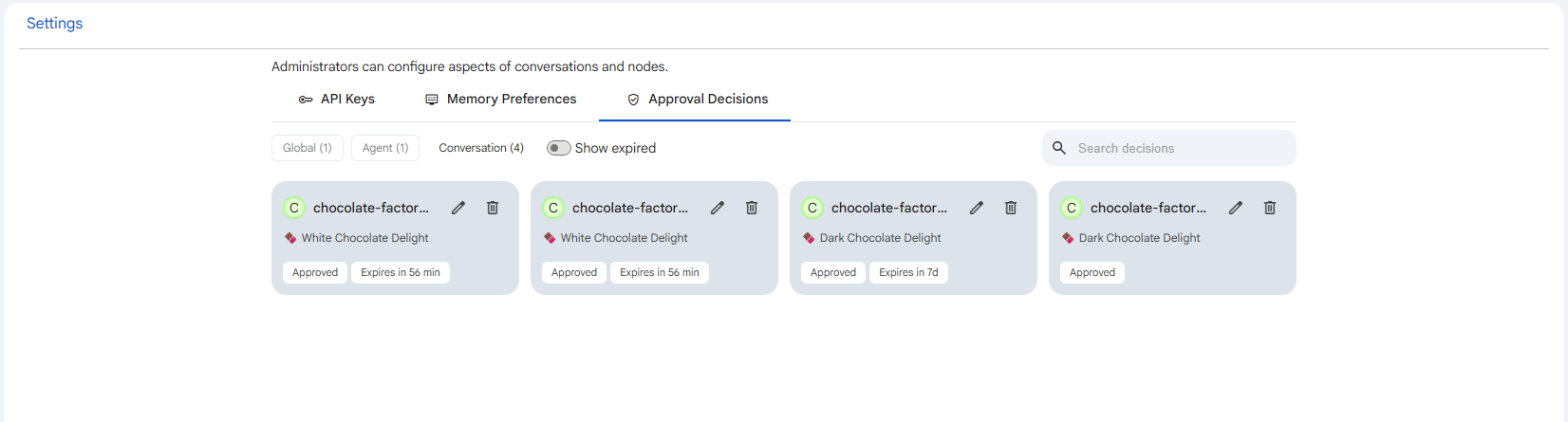
The Approval Decisions tab in Settings lists the tool call decisions you have saved from conversations, so you can review, change, or remove them. Only decisions with a remembered scope appear here; one-off "Just this time" choices are not saved.
How saved decisions connect to the conversation prompt
This tab is the standing-rules side of the in-conversation approval flow. When an agent asks for approval to run a tool during a chat, you approve or deny it and pick a scope and expiry, as described above. Any choice broader than "Just this time" becomes a saved decision, and that decision is exactly what appears and is managed here. From then on, future tool calls that match the saved decision are auto-approved or auto-denied for you, without prompting, for as long as the decision is in effect. When it expires or you delete it, the agent goes back to asking. Managing decisions here therefore lets you tune that automatic behaviour after the fact: tighten a rule you were too generous with, broaden one you trust, or clear it so you are prompted again. This matters because it keeps trusted tools running smoothly while making sure a decision never silently outlives your intent.
The three scopes
Each saved decision applies at one of three scopes, which control how widely the auto approve or deny reaches:
- Global: the decision applies everywhere, across all agents and conversations. Use it for a tool you trust the same way no matter who is calling it, because the saved choice then governs every matching tool call you encounter.
- Agent: the decision is scoped to a single agent and applies across all of your chats with that agent, but nowhere else. This is for when your trust in a tool depends on which agent is using it, so the rule follows that one agent.
- Conversation: the decision is scoped to a single conversation and applies only within it. This is the narrowest standing rule, useful when you want to stop being prompted for the rest of one chat without committing to anything beyond it.
Filtering and finding decisions
- Scope tags: filter the list by Global, Agent, or Conversation. Each tag shows how many decisions fall under it.
- Show expired: a toggle to include decisions whose expiry has already passed. By default they are hidden.
- Search: filter the visible decisions by tool name, rejection reason, agent name, or conversation title.
Each decision is shown as a card with the tool name, whether it is approved or denied, and which agent or conversation it is scoped to where that applies. If the list is empty for the chosen scope, the page explains that decisions you make on tool call approvals will show up there.
Editing a decision
 Snapshot of Protean AI Platform
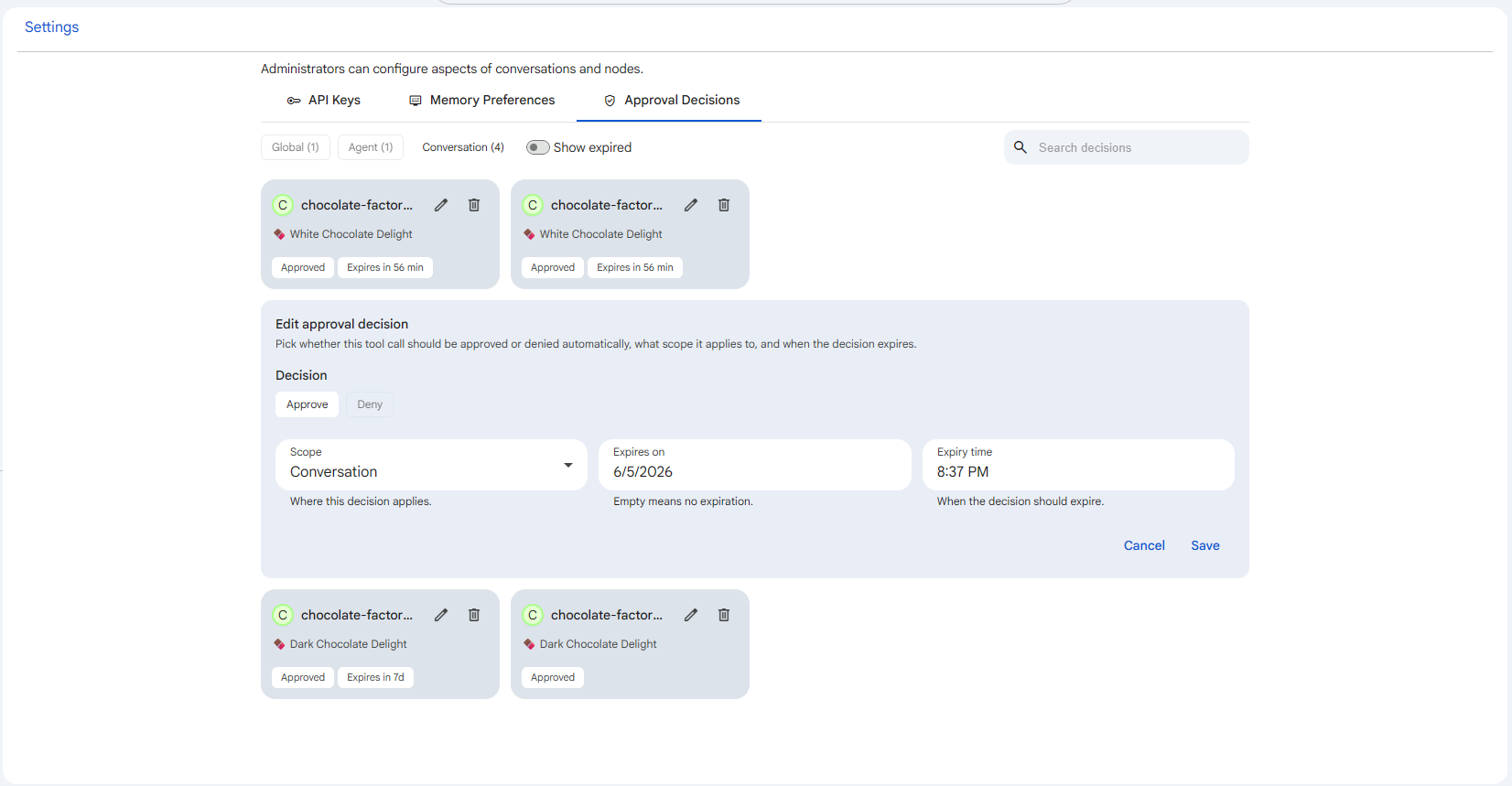
Use the edit control on a card to open the inline editor, where you can change:
- Decision: whether the tool call is Approved or Denied automatically.
- Scope: Global, Agent, or Conversation.
- Expires on and Expiry time: when the decision should stop applying. Leaving the date empty means it never expires.
- Rejection rationale: an optional note, shown only for denials, that is sent to the agent when this decision denies a call.
Click Save to apply your changes or Cancel to discard them.
Deleting a decision
Use the delete control on a card to remove a saved decision. You are asked to confirm, because deletion cannot be undone. After a decision is removed, the agent will ask you again the next time that tool call comes up within the matching scope.