API Keys
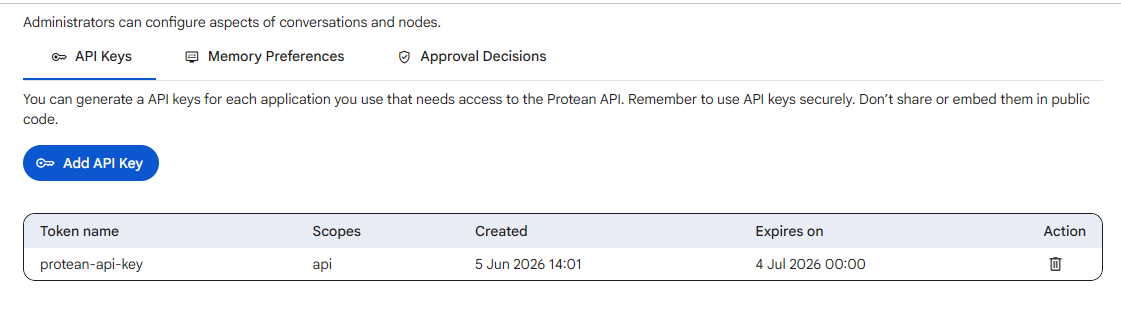
An API key is a token that lets an application call the Protean API on your behalf. Generate a separate key for each application that needs access, so that you can revoke one without affecting the others.
 Snapshot of Protean AI Platform
Use API keys securely. Do not share them or embed them in public code. A key carries your access, so anyone who holds it can act as you against the API.
Creating a key
 Snapshot of Protean AI Platform
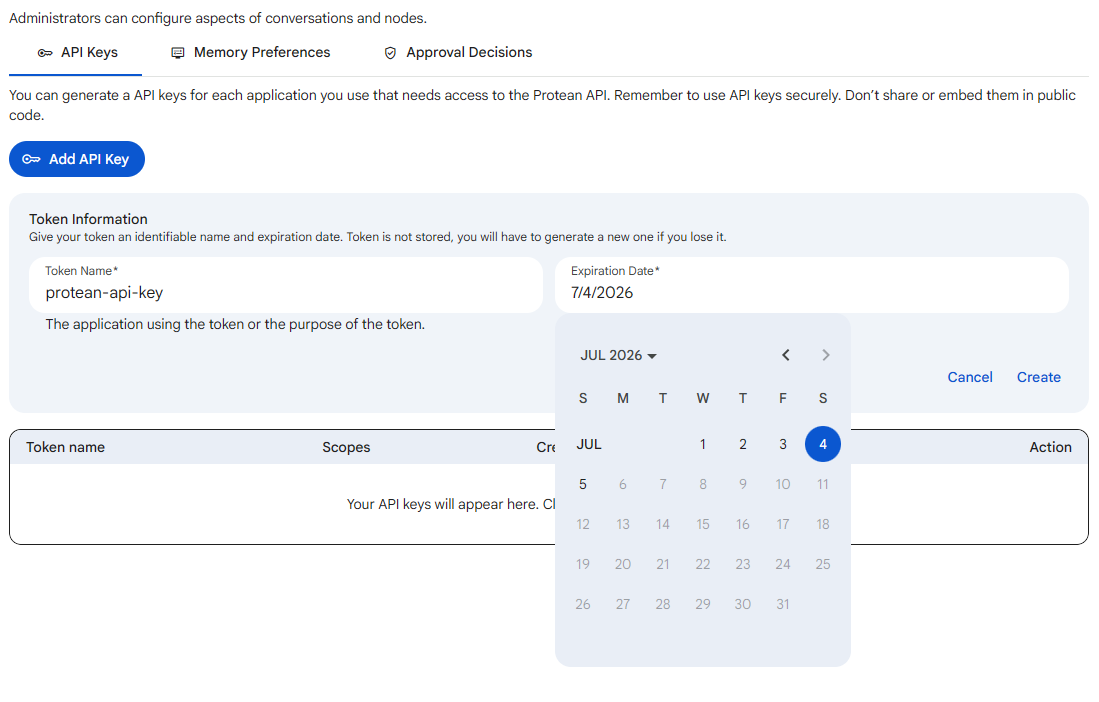
Click Add API Key to open the token form, then fill in:
| Field | Required | Notes |
|---|---|---|
| Token Name | Yes | A name that identifies the application using the token or the purpose of the token. |
| Expiration Date | Yes | The date the token stays valid until. It must be in the future, up to the maximum validity your org allows. |
The expiration date can be set from tomorrow up to a maximum window configured for your organisation, so a key cannot be created without an end date. The picker enforces this by allowing only dates within that future window, which keeps every token on a finite lifetime. Click Create to generate the token, or Cancel to dismiss the form.
 Snapshot of Protean AI Platform
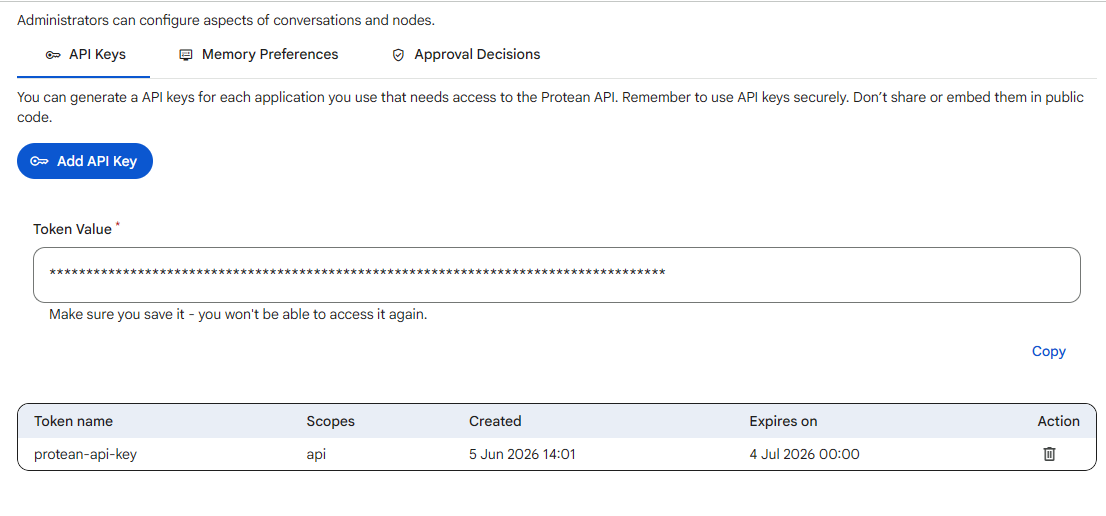
As soon as the key is created, the form swaps to show the Token Value along with a Copy button. This is the only time the full token is ever displayed.
The token is shown only once, right after you create it. It is not stored, so copy it and save it somewhere safe before you leave the form. Use the Copy button to put it on your clipboard. If you lose it, you cannot retrieve it again; you have to delete the key and generate a new one. The reason it is shown only once is that Protean never keeps the raw token after creation, so there is nothing to display later and nothing for an attacker to read out of the key list.
Every key is created with the api scope. The scope is the set of permissions a token carries, and api grants general access to the Protean API acting as you, so a request made with the key can do what you can do through the API. It is shown in the key list so you can see at a glance what each token is allowed to do, which matters because a token's reach is exactly your own and should be guarded accordingly.
The key list
Below the form, a table lists every key you currently hold:
- Token name: the name you gave the key.
- Scopes: what the key authorises (
api). - Created: when the key was generated.
- Expires on: when the key stops working.
- Action: a delete control to revoke the key.
If you have not created any keys yet, the table shows a prompt to add your first one.
Revoking a key
To revoke a key, click the delete control on its row. You are asked to confirm, because revoking cannot be undone. Once revoked, any application still using that token loses access immediately, so update the application with a new key first if it needs to keep working.