Facts
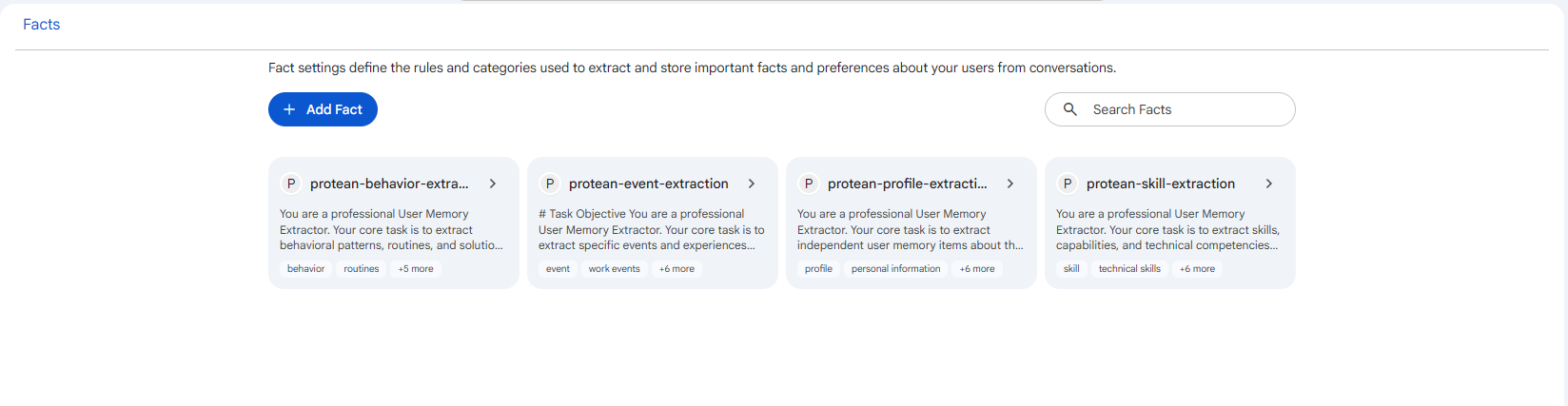
The Facts page manages fact extraction settings. A fact setting defines the rules and categories used to pull durable facts about your users out of their conversations and store them, so an agent can recall them later, even in a new conversation.
Open it from the left sidebar under Facts.
 Snapshot of Protean AI Platform
Creating a fact setting
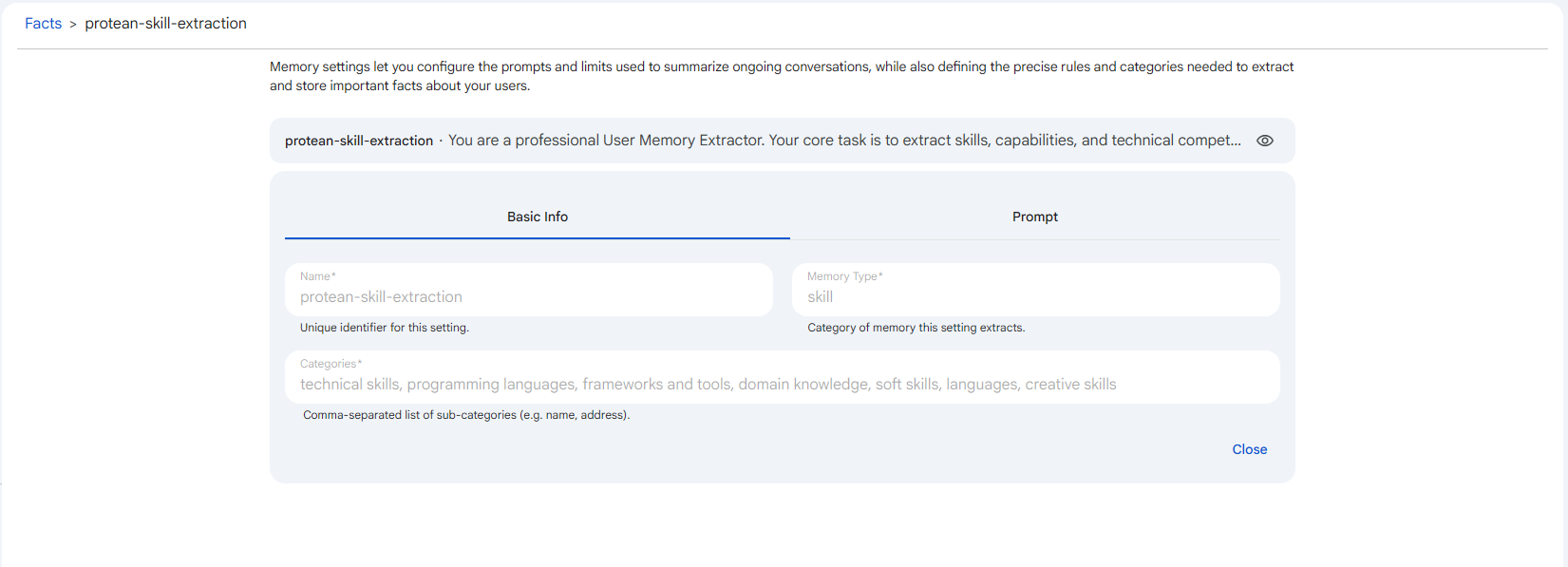
Select Add Fact to open the creation form inline on the list. The page also has a search field to filter existing settings by name. Save stays disabled until the required fields are valid. The form is split into two tabs: Basic Info and Prompt.
Basic Info
 Snapshot of Protean AI Platform
Name
A unique identifier for the setting. It is the label you and your teammates use to find and reference this configuration when assigning it to an agent's memory behaviour. You type it once at creation and spaces are converted to hyphens as you go, and because it is the stable handle the platform keys against, the field becomes read-only after the setting exists, so editing an existing setting cannot rename it.
Memory Type
The category of memory this setting extracts, such as behavior, event, profile, or skill. It is the high-level bucket that the extracted facts are filed under, which is how the platform keeps profile facts separate from skill facts or event facts when an agent later recalls them. It is required, and like the name it is fixed once the setting exists, so it is read-only when you edit an existing setting. Choosing it deliberately matters because it determines which kind of long-term memory this setting contributes to.
Categories
A comma-separated list of sub-categories that narrow the memory type, for example name, address, phone. As you type, each entry is trimmed of surrounding whitespace and stored as its own category, giving the extracted facts a finer-grained label within their memory type. At least one category is required. They matter because they shape how precisely an agent can target what it remembers, letting it recall a single sub-category instead of every fact of a broad type.
Prompt
 Snapshot of Protean AI Platform
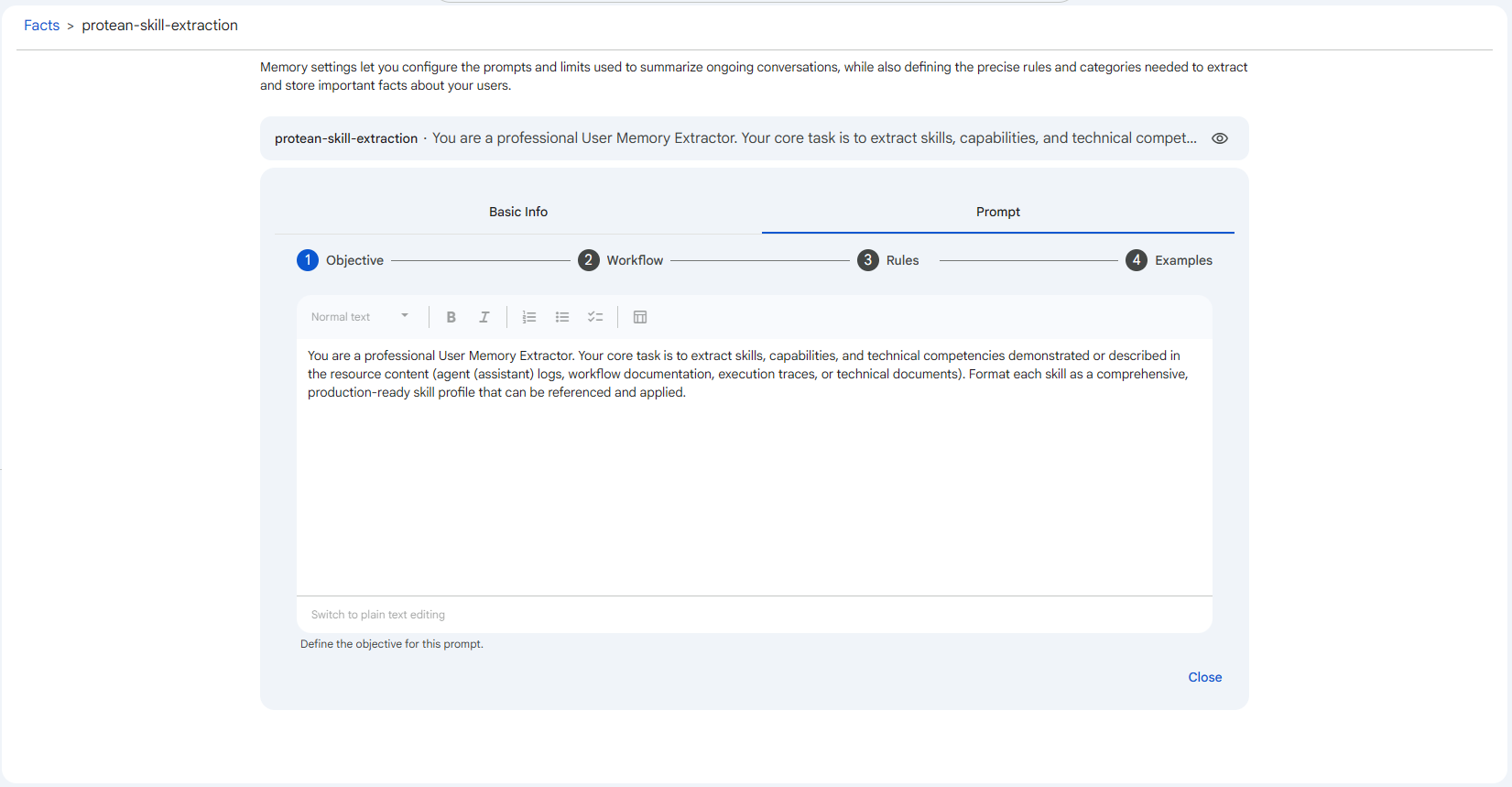
The Prompt tab uses a four-step stepper. Each step is a focused section of the extraction prompt, and the four are concatenated into the single set of instructions the agent follows when it scans a conversation and decides what to remember. Splitting the prompt this way keeps each concern separate so you can refine one part of the extraction behaviour without rewriting the whole thing.
The Objective step states what this setting is meant to extract and why it matters, framing the rest of the prompt so the model knows which facts are in scope before it reads any procedure. The Workflow step lays out the step-by-step procedure the agent follows when scanning a conversation, which is what makes the extraction repeatable rather than ad hoc. The Rules step sets the constraints and conditions that decide what counts as a fact and what is ignored, and it is where you tighten precision to avoid storing noise. The Examples step provides worked examples of the expected extraction behaviour, which anchor the model with concrete demonstrations and are usually the most effective way to correct mistakes you see in practice.
The prompt is required. You can add further custom steps beyond the four above using the Add step at the end of the stepper, and they are appended to the composed prompt in order.
Default settings
Protean AI ships four default fact extraction settings: protean-behavior-extraction, protean-event-extraction, protean-profile-extraction, and protean-skill-extraction. Defaults are view-only: they offer a View action (the eye icon) so you can inspect the memory type, categories, and prompt, but they cannot be edited or deleted. To extract different facts, create your own fact setting instead.
The default fact settings cover common needs (behaviour, events, profile, and skills). Start from what they extract, then author your own setting when you need categories or rules specific to your users.
An administrator selects which fact settings act as the platform defaults under Administration, Default Memory Settings.
Referenced screenshots
/img/memory/memory-facts.png/img/memory/memory-facts-detail-basic.png/img/memory/memory-facts-detail-prompt.png