Conversations
A Conversation is a chat session on Protean AI. It is where you actually use the platform: you type a message, send it, and receive a streamed response. Conversations can be held with an Agent or directly with a deployed model, and the full back and forth is saved so you can return to it later.
Conversations live under the Use section of the left sidebar, labelled Conversations. A New Chat button sits at the top of that section, and the list below it is your conversation history. An open conversation has its own address of the form /conversations/:conversationId.
In the context of this documentation, the term assistant refers to either an Agent or a deployed model that you are chatting with. The thread is the running list of messages exchanged inside a single conversation.
Conversations provide the following:
- A single place to chat with Agents and models and to revisit past sessions
- Streamed responses that appear progressively as the assistant generates them
- A message navigator for trying multiple attempts and regenerating responses
- Inline visibility into tool calls, approval requests, and clarifying questions raised during a response
- A searchable, categorised history of every conversation in the sidebar
Starting a New Chat
Select New Chat at the top of the Conversations section to begin a fresh session. This clears the current selection and takes you to an empty chat ready for your first message. On a narrow screen, where the sidebar is shown as an overlay, the sidebar collapses automatically after you start the new chat so the message area is unobstructed.
You do not need to name a conversation up front. A new conversation is created the moment you send your first message, and a title is generated for it automatically. You can rename it later (see Conversation History).
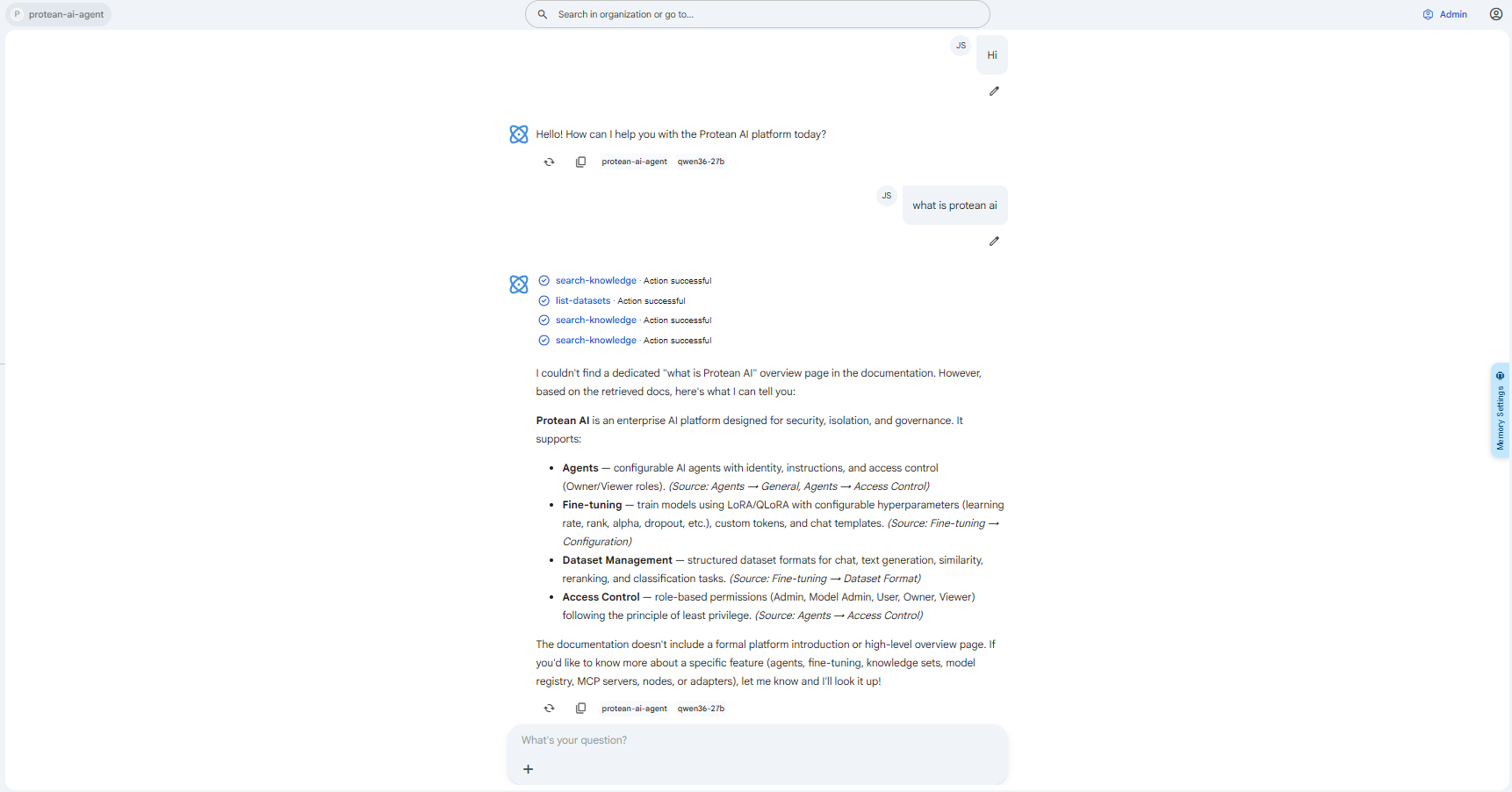 Snapshot of Protean AI Platform
Chatting with an Agent versus a Model
Protean AI supports two kinds of chat, and the conversation behaves slightly differently depending on which one you are in:
- Agent chat: the conversation is bound to a specific Agent (and, where relevant, to one of its sub-agents). The Agent can use its configured tools, ask you clarifying questions, and request approval before running certain actions. You typically enter an Agent chat from the Agent itself, which opens a conversation scoped to that Agent.
- Model chat: the conversation talks directly to a deployed model runtime, without an Agent in front of it. This is a more direct way to prompt a model.
Agent chat is only available when chat is enabled for the Agent. If an Agent has been obsoleted, or its chat channel is not enabled, the message box is disabled and a tooltip explains why. You will not be able to send new messages or regenerate responses in that conversation until the Agent is available again.
Sending Messages
Type your message into the box at the bottom of the conversation. The placeholder reads What's your question?. The box grows as you type and accepts multi line input.
When your message contains text and no response is currently being generated, a Send button appears. Send your message to add it to the thread and start a response.
Beside the message box, an add (+) button opens a menu of extras you can attach to a message. Depending on what the conversation supports, this menu may include:
- Upload files: attach one or more documents to your message. Uploaded files appear as cards above the message box while they are processed. File upload is unavailable when a default embedding or reranking model has not been set, in which case the option is disabled with an explanatory tooltip.
- Thinking: turn on extended reasoning for the response when the assistant supports it. Once added, a Thinking tag appears next to the message box, and where a thinking budget is configurable you can pick the budget from the tag. Remove it with the close icon on the tag.
- Properties: open the Inference Configurations dialog to adjust completion settings for the message. When set, a Properties tag shows how many properties are active; clearing the tag removes them.
These extras only appear when the current assistant supports them, so the menu may show only a subset.
Streaming Responses
When you send a message, the assistant's reply streams in progressively rather than appearing all at once. The Protean icon at the start of the response spins while the reply is being generated, and the text fills in as it arrives.
While a response is streaming, the Send button is replaced by a Stop button. Select Stop to end generation early. The portion already produced remains in the thread.
Responses are rendered as rich Markdown, including code blocks (with a copy button), tables, emoji, math, and diagrams.
Press the keyboard send shortcut to send without reaching for the mouse. A new line can still be added inside the message without sending it.
The Message Navigator
Both your messages and the assistant's responses can have more than one version. The message navigator lets you move between these versions and create new ones.
Multiple Attempts and Regenerate
Under an assistant response you will find a row of controls:
- Regenerate (the refresh icon): ask the assistant to produce another response to the same message. Each regeneration is kept as a separate attempt rather than overwriting the previous one. Regenerate is hidden when the Agent is obsoleted or its chat is disabled.
- Attempt navigator: when a response has more than one attempt, left and right chevrons appear with a counter such as
2 / 3. Use them to page through the alternative responses. The rest of the thread updates to follow whichever attempt you have selected. - Delete: when there is more than one attempt, you can delete the currently shown attempt.
- Copy: copy the response text to your clipboard.
Editing a Message
You can also revise one of your own messages. Selecting edit on a user message turns it into an editable box; Send submits the revised text as a new branch of the conversation, and Cancel discards the edit. As with regenerated responses, editing creates an additional version rather than replacing the original, and a counter with chevrons lets you move between the versions of that message. A user message can also be deleted from the same row of controls.
Because attempts and edits create branches, a single conversation can hold several parallel lines of discussion. The navigator always shows you one path through the thread at a time; switching an attempt higher up the thread changes which downstream messages are shown.
Tool Calls in the Thread
When an Agent uses a tool while answering, the tool activity is shown inline, woven into the response rather than hidden away.
Each tool call appears as a compact, expandable row. The row shows the tool's name, a short status label (for example, that it is running or has completed), and a spinner while it is in progress. Selecting the row expands a timeline of what happened during the call, which can include:
- The arguments the tool was called with
- Any reasoning or thinking the Agent recorded for the call
- The tool's response, shown as expandable Markdown
- Approval decisions and any clarifying questions and answers tied to the call
Sub-agent calls are shown as a single, non expandable row identifying the sub-agent and its status, so you can see that work was delegated without drilling into it.
Tool Call Approvals
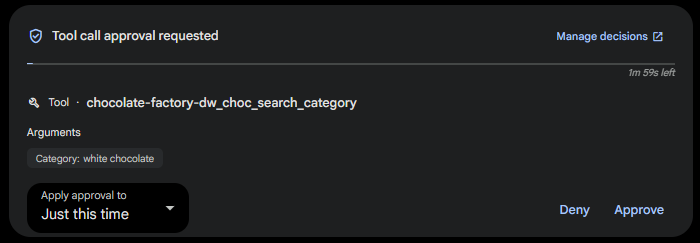
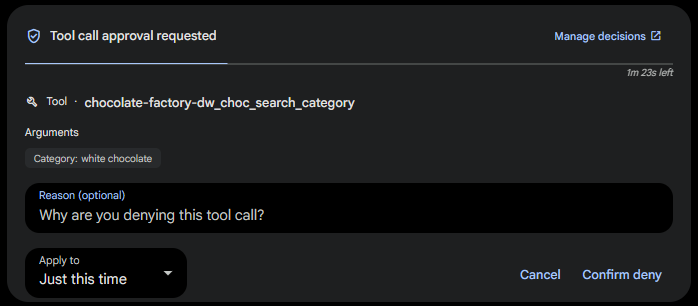
Some tools require your explicit approval before they run. When the Agent reaches such a tool, a Tool call approval requested panel takes the place of the message box at the bottom of the conversation. It identifies the tool being called (shown with a Tool label and the tool's name) and lists the Arguments it intends to use, so you can see exactly what the Agent is about to do before deciding. A Manage decisions link in the panel header opens your Approval Decisions settings, where remembered approvals and denials can be reviewed and revoked. A countdown in the corner, paired with a thin progress bar, shows how long you have to respond before the request expires.
 Snapshot of Protean AI Platform
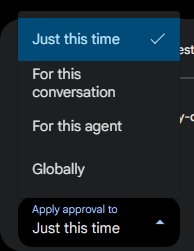
Before you approve or deny, the Apply approval to dropdown decides how far your decision reaches. This matters because it lets you answer once and have that answer remembered, instead of being asked again for the same kind of call. The options are:
- Just this time: applies to this one call only. The Agent will ask again the next time it wants to make a similar call.
- For this conversation: remembers your decision for the rest of the current conversation.
- For this agent: remembers your decision for every conversation with this Agent.
- Globally: remembers your decision everywhere, across all Agents.
 Snapshot of Protean AI Platform
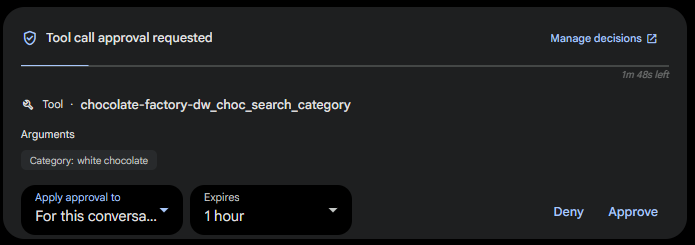
When you choose any scope broader than Just this time, an Expires dropdown appears so you can set how long the remembered decision stays in effect (for example, one hour). After it expires, the Agent will ask again. A one-off Just this time decision has no expiry because it does not outlive the single call.
 Snapshot of Protean AI Platform
With the scope (and, where shown, expiry) set, you respond in one of two ways:
- Approve: allow the tool call to proceed under the chosen scope.
- Deny: block the tool call. Choosing Deny reveals a Reason (optional) box where you can record why you are blocking it, an Apply to dropdown carrying the same scope choices as above, and Cancel and Confirm deny buttons. Confirm deny records the denial at the chosen scope, while Cancel backs out without deciding.
 Snapshot of Protean AI Platform
Approval requests are time limited. If the countdown reaches zero, the request expires and the Approve and Deny buttons are disabled. Respond before the bar runs out to keep the conversation moving.
Clarifying Questions
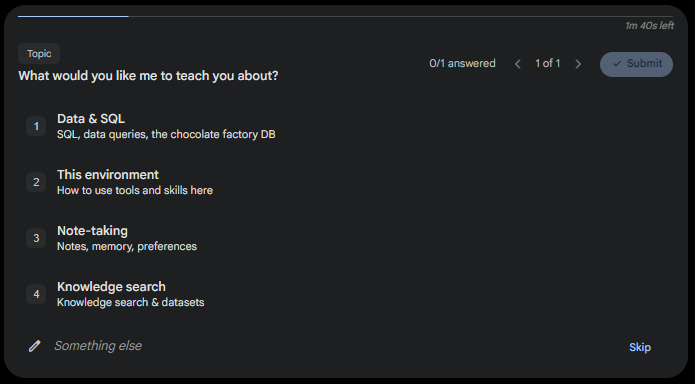
An Agent may also pause to ask you a clarifying question before continuing. When it does, a question panel replaces the message box, so the Agent can resolve an ambiguity rather than guessing and producing the wrong answer.
The panel presents one question at a time. Above the question, a short topic tag categorises what the question is about, and an answered counter (such as 0/1 answered) together with a 1 of 1 position indicator and chevron controls let you see your progress and move between questions when there is more than one. The question itself is followed by its possible answers, each shown as a numbered option with a title and a short description of what it means. Where a question allows it, you can select more than one option. A Something else field at the bottom lets you answer in your own words instead of, or in addition to, the listed options.
You finish a question in one of two ways: Submit, which becomes available once the question is answered and sends your response back to the Agent, or Skip, which moves past the question without answering it. As with approvals, a countdown bar limits how long you have to respond before the request expires.
 Snapshot of Protean AI Platform
Response Evaluation
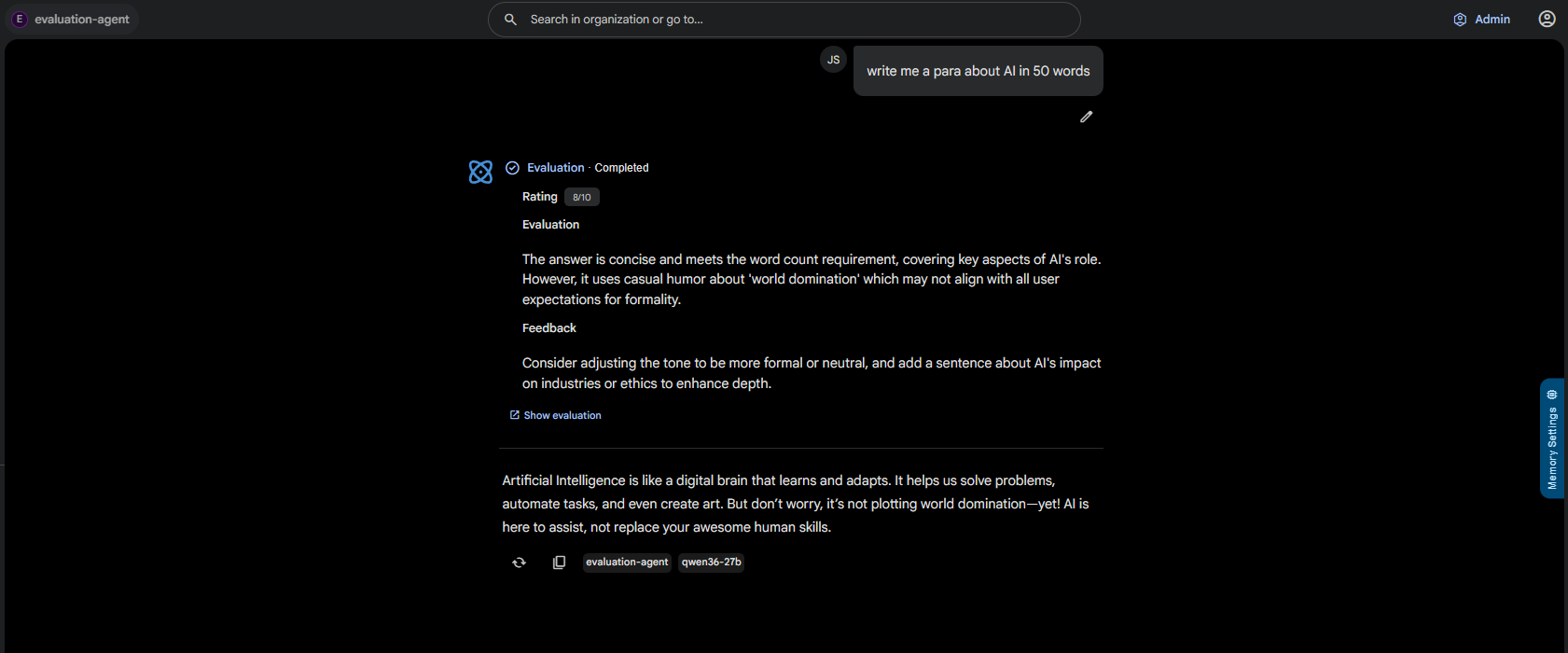
When you chat with an Agent that has evaluation enabled, the Agent does not just answer, it grades its own answer before showing it to you. After it produces a response, it scores that response against the success criteria configured on the Agent, and the outcome is shown inline in the thread as an Evaluation row, marked Evaluation · Completed. This matters because it gives you a transparent, built-in quality check: you see not only the answer but how the Agent rated it and why, so you can judge how much to trust it.
The evaluation row surfaces three things:
- Rating: a score out of ten (for example,
8/10) summarising how well the response met the criteria. - Evaluation: a short narrative explaining the assessment, calling out what the response did well and where it fell short.
- Feedback: concrete suggestions for how the response could be improved.
A Show evaluation link opens the full evaluation detail for a closer look.
 Snapshot of Protean AI Platform
Enabling evaluation turns streaming off for the Agent, so an evaluated response does not stream in token by token. Instead the Agent generates and scores the answer first, and the finished response appears once its evaluation has completed.
Evaluation-Driven Attempts
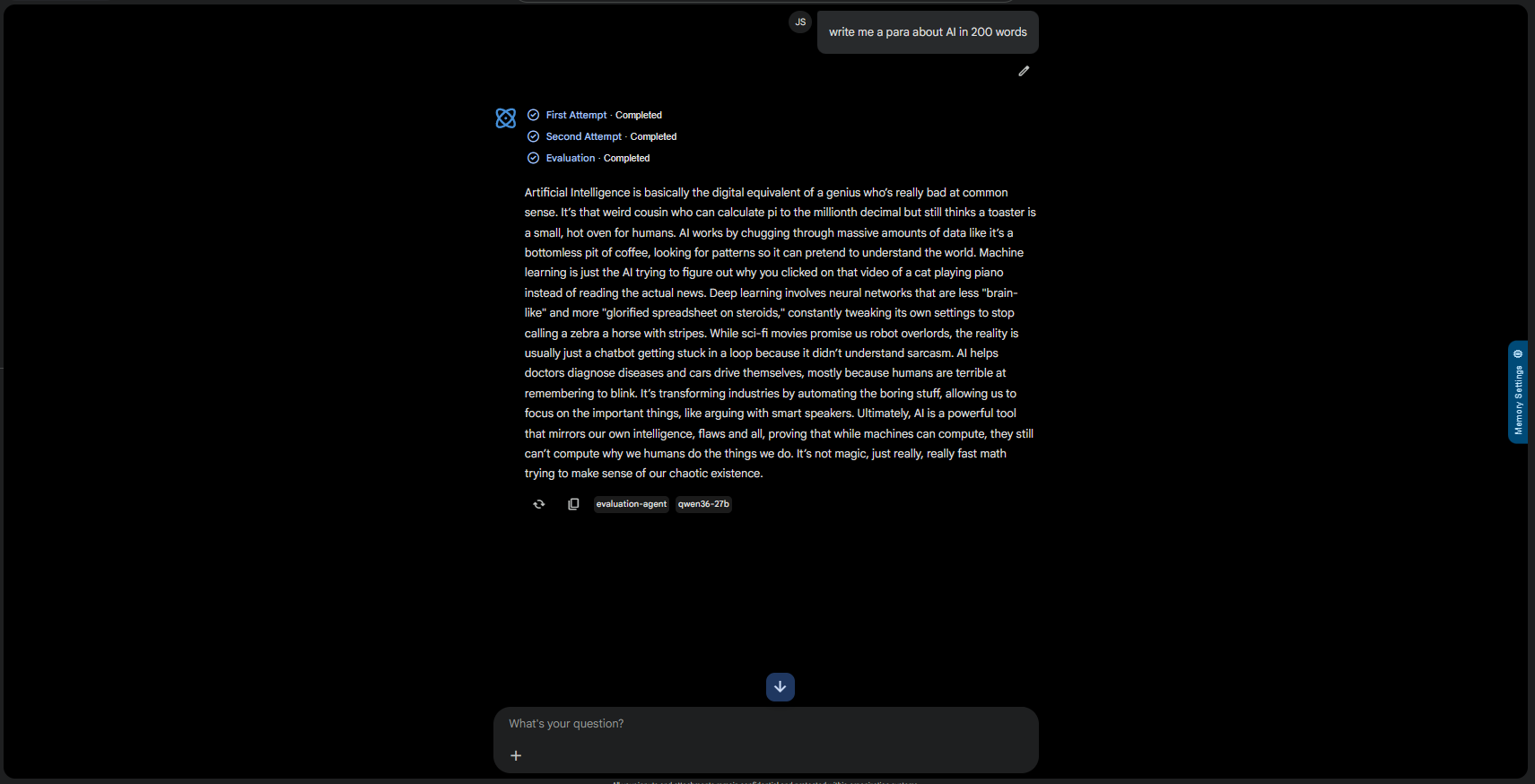
Evaluation can do more than annotate a single answer: when a response does not meet the Agent's success criteria, the Agent automatically tries again rather than handing you a result it judged inadequate. Each try is recorded in the thread as its own row, First Attempt · Completed, Second Attempt · Completed, and so on, followed by the Evaluation · Completed row, and the answer shown below is the attempt the Agent settled on. This matters because it means an evaluated Agent self-corrects toward a better answer instead of stopping at its first draft.
 Snapshot of Protean AI Platform
Expanding the evaluation shows each attempt's Result, the candidate answer that attempt produced, alongside the Rating, Evaluation, and Feedback it received, so you can compare the attempts and see why one was preferred over another.
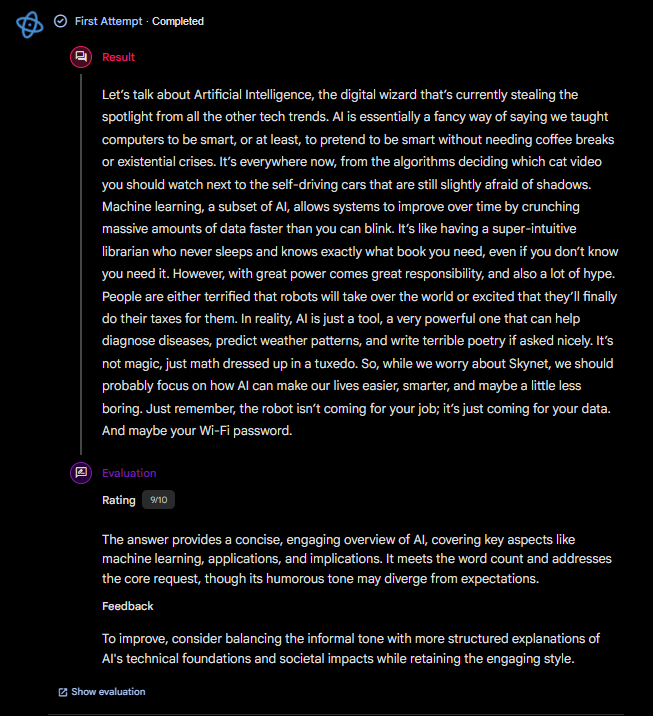 Snapshot of Protean AI Platform
Conversation Memory
As a conversation unfolds, the assistant captures what it learns into memory so that it can carry context forward instead of starting cold each time. The Memory Settings panel is where you review what has been captured for the open conversation. It opens from a vertical Memory Settings tab pinned to the right edge of the conversation, and it slides out as a panel titled Memory with the subtitle "Browse the summaries, facts, and notes captured for this conversation." Close it with the X in its header. You use this panel to see what the assistant believes it has learned, which is useful both for understanding why it answered a certain way and for spotting when it has captured something incorrect.
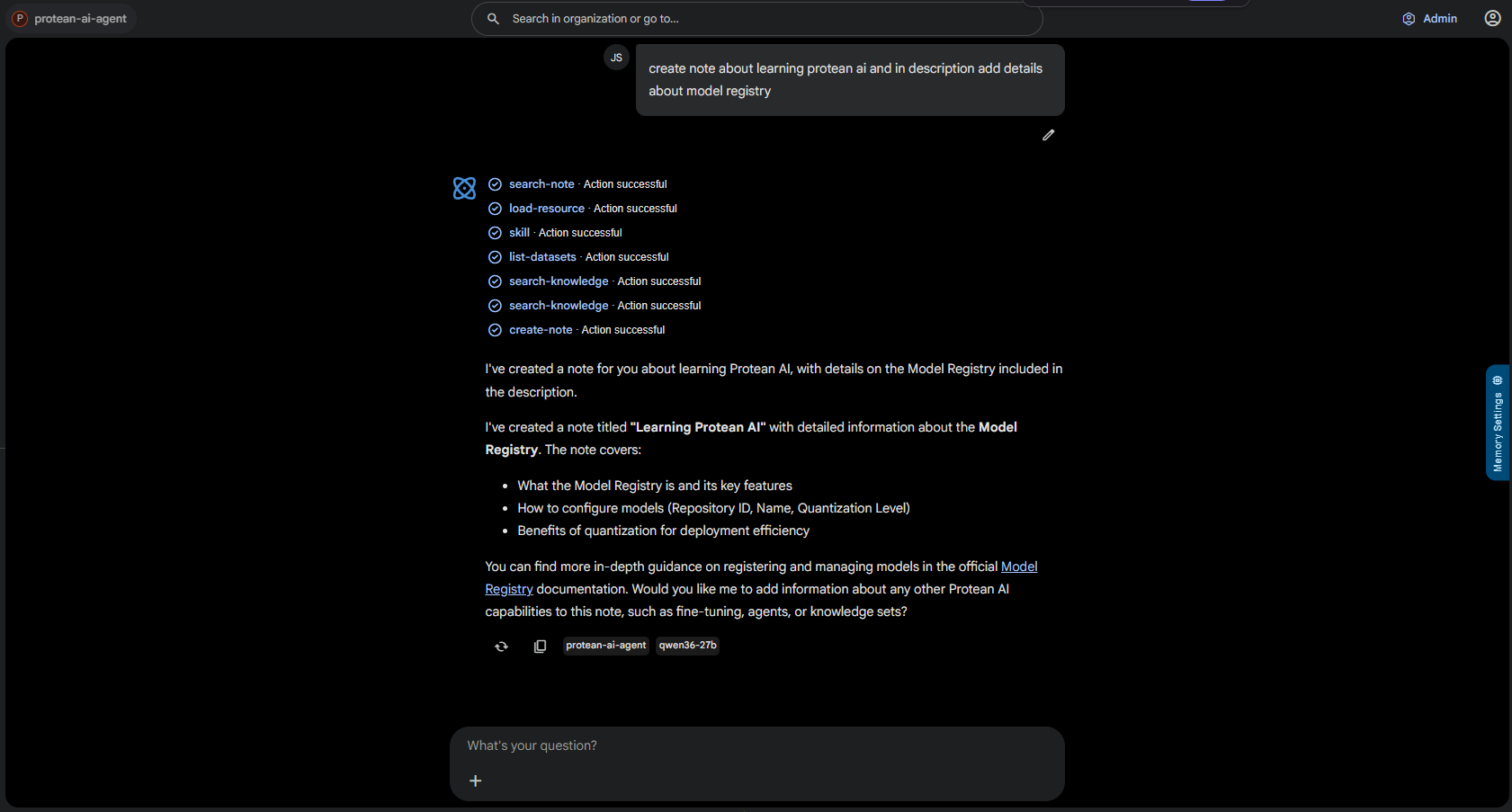 Snapshot of Protean AI Platform
The panel is organised into three tabs, Summary, Facts, and Notes, each showing a different kind of remembered information.
Summary
The Summary tab holds the condensed, running summary of the conversation. Rather than re-reading the entire thread, the assistant maintains a compact narrative of what has been discussed so far, and this tab is where you read that narrative. It matters because the summary is part of the context the assistant draws on when it responds, so reviewing it tells you what high level understanding of the conversation the assistant is carrying. When nothing has been summarised yet, the tab simply shows that no summary is available.
Facts
The Facts tab lists discrete pieces of information the assistant has extracted from the conversation, each shown as its own card. A fact is a single, self-contained statement (for example a technical fact stated during the chat, or a piece of profile information about the user), and capturing facts lets the assistant recall specific details later without re-deriving them. Two sub-views organise the facts:
- Fact Items: the flat list of individual fact cards.
- Categories: the same facts grouped by category, so you can see them organised by theme rather than as one long list.
Each fact card shows the statement itself along with tags that describe it: a type tag such as Behavior, Profile, or Skill that says what kind of fact it is, the extraction that produced it (for example Protean Behavior Extraction, Protean Profile Extraction, or Protean Skill Extraction), and one or more category tags such as Technical Skills, Programming Languages, Domain Knowledge, or Personal Information, with a "+N more" indicator when a fact carries additional categories. When a particular kind of fact has not been found, the card states so plainly, for example noting that no behavioral information was extracted from the conversation.
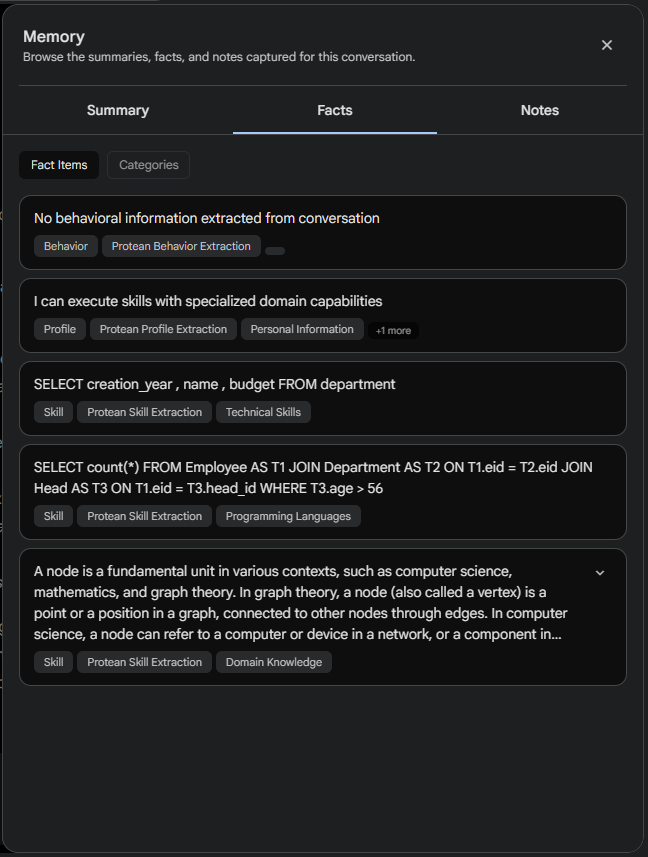 Snapshot of Protean AI Platform
Notes
The Notes tab shows free form notes captured for the conversation, each rendered as a card with a title and a Markdown body. Notes differ from facts in that they are larger, written passages rather than single extracted statements, which makes them suited to capturing explanations or reference material that the assistant should keep on hand. Two sub-views scope which notes you see:
- Agent: notes held at the Agent level, available across conversations with that Agent.
- Conversation: notes captured specifically for the open conversation.
Each note card renders its title and the start of its Markdown content, and carries controls to expand it for the full text, edit it, and remove it.
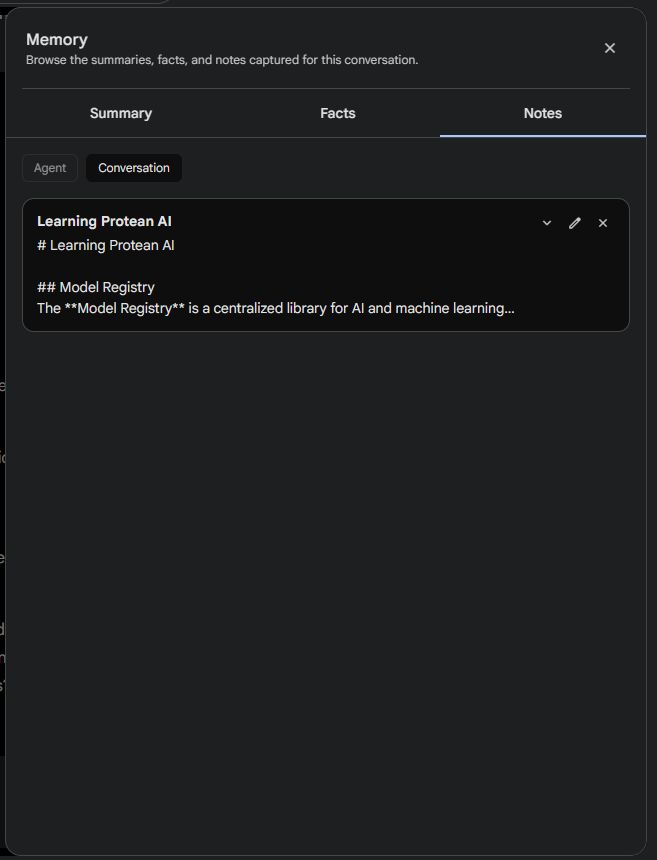 Snapshot of Protean AI Platform
Editing a Note
Selecting the edit control on a note card turns it into an editable field so you can revise its content directly in the panel. This matters because notes feed back into the assistant's context, so correcting or extending a note changes what the assistant has on hand for the rest of the conversation. Save your changes to update the note in place, and the revised text replaces what was there before.
Conversation History
Every conversation you take part in is saved and listed in the Conversations section of the sidebar. The history is grouped into sections to make recent activity easy to find:
- Pinned conversations, shown first
- Today
- Past 7 Days
- Older conversations grouped by month
The currently open conversation is highlighted in the list. If you have more conversations than fit, a + N MORE indicator shows how many are hidden, and the list loads more as you continue.
Hovering over a conversation (or having it open) reveals a menu (more_horiz) with actions for that conversation:
- Pin / Unpin: keep important conversations at the top of the list
- Rename: give the conversation a clearer title (you can also rename by double clicking its title)
- Delete: remove the conversation
A conversation's title is generated automatically from its first exchange, so you do not have to name it before you start. Rename it later if you want something more memorable.
Workflow
- Select New Chat to start a fresh conversation, or open an existing one from the history list.
- Type your message, optionally attaching files or enabling extras such as Thinking, then send it.
- Watch the response stream in, and use Stop if you want to end generation early.
- Respond to any inline approval requests or clarifying questions the Agent raises.
- Use the message navigator to regenerate, edit, or page through alternative attempts.
- Pin, rename, or delete the conversation from its menu in the sidebar.
Result
A conversation captures a complete chat session with an Agent or a model, including its responses, any tool activity, approvals, and clarifying questions, and the alternative attempts you explored. It remains available in your history so you can revisit it, branch it further, or continue where you left off.