Preview
Preview lets you chat with the agent without leaving the configuration screen. It is the fastest way to test the effect of a change, adjust the instructions, model, knowledge, or tools, then immediately try a message and see how the agent responds.
How It Works
Every configuration segment has a Preview tab, the vertical button with an eye icon docked to the right edge of the screen. Clicking it slides out a panel containing the agent's live chat interface (the same conversation experience users get), scoped to the agent (and the specific sub-agent) you are configuring. Close it with the ✕ in the panel header.
Because Preview talks to the agent's running deployment, what you see is exactly how the agent will behave for real users with the currently deployed configuration.
Preview reflects the deployed version of the agent. After changing and saving a segment, re-deploy (or publish) so the running instance picks up your change before testing it in Preview.
Preview Before Deployment
If the agent is not yet deployed, the chat is disabled and Preview shows a message explaining what to do first. It tells you that you can only chat in preview once the agent is deployed, and that a deployment cannot be created until the agent's Instructions and Model configuration are saved. Once those are saved, open Deploy & Auth to deploy the agent.
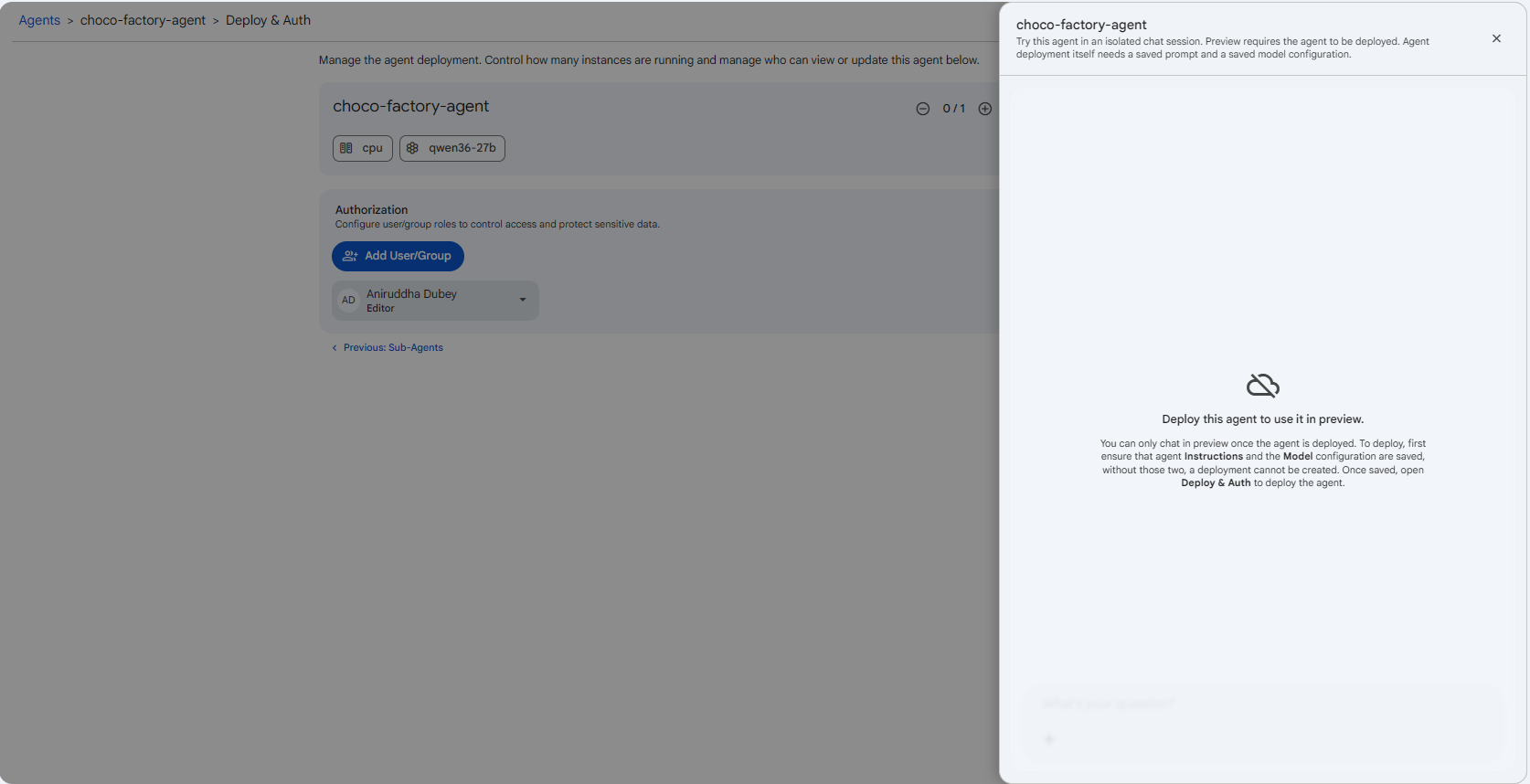 Snapshot of Protean AI Platform
In short, the path to an interactive preview is:
- Save Instructions and Model (the minimum required to create a deployment).
- Open Deploy & Auth and deploy the agent.
- Open Preview and start chatting.
Preview After Deployment
Once the agent is deployed and running, Preview becomes a fully interactive chat. Type a message and the agent responds live, using its real instructions, model, knowledge, memory, skills, MCP tools, and sub-agents. This is the place to sanity-check behaviour before publishing changes to your users.
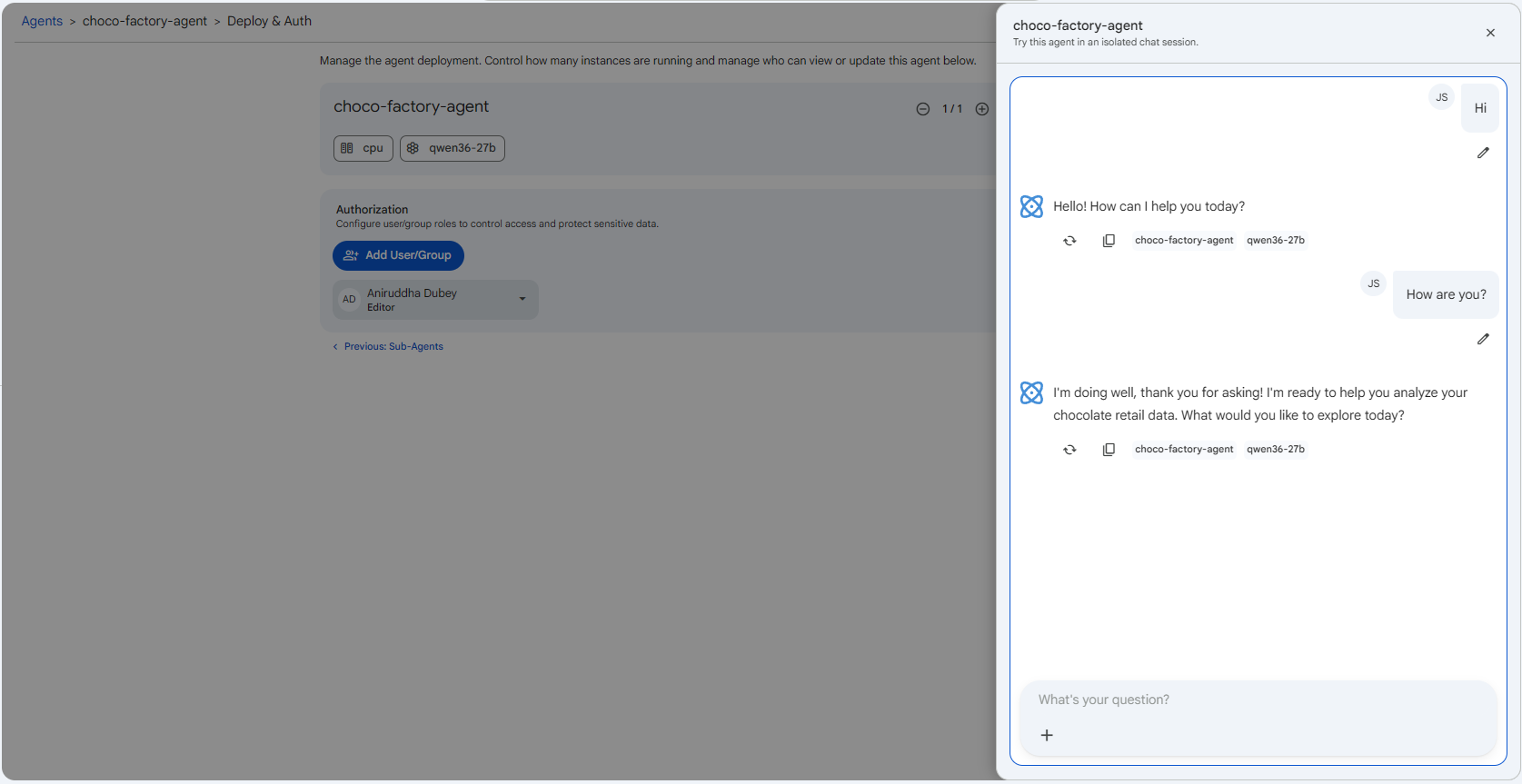 Snapshot of Protean AI Platform
Use Preview as a tight feedback loop: tweak one thing (a rule in the instructions, the creativity slider, a tool's approval scope), re-deploy, and test the exact scenario that was failing. It's far quicker than starting a full conversation from the agents list each time.